If your iPhone feels slower than usual, websites aren’t loading correctly, or you’re running low on storage, clearing the cache can help. Cache files are temporary data stored by apps and browsers to make them load faster. Over time, however, these files can build up and take up valuable storage space.
In this guide, you’ll learn how to clear cache on iPhone using different methods. Whether you want to clear Safari cache, app cache, or free up storage, this beginner-friendly guide walks you through every step.
Read Our Guide On:
What Is the Role of SoCs in Smartphones?
What Is Cache on an iPhone?
Cache is temporary data stored by apps and websites to improve performance. Instead of downloading the same information every time you open an app or website, your iPhone saves some data locally.
Examples of cached data include:
- Website images and files
- Login information
- App thumbnails
- Streaming data
- Temporary files
Cache improves speed, but when too much builds up, it can cause problems.
Why Should You Clear Cache on iPhone?
Clearing cache offers several benefits, including:
- Frees up storage space
- Improves iPhone performance
- Fixes app glitches
- Resolves website loading issues
- Removes outdated website data
- Helps apps run more smoothly
It’s not something you need to do every day, but doing it occasionally keeps your iPhone running efficiently.
Signs Your iPhone Cache Needs Clearing
You may notice:
- Apps crashing unexpectedly
- Safari loading outdated pages
- Websites displaying errors
- Slow app performance
- Storage almost full
- iPhone feeling sluggish
If you’re experiencing any of these issues, clearing cache is a good first troubleshooting step.
How to Clear Safari Cache on iPhone
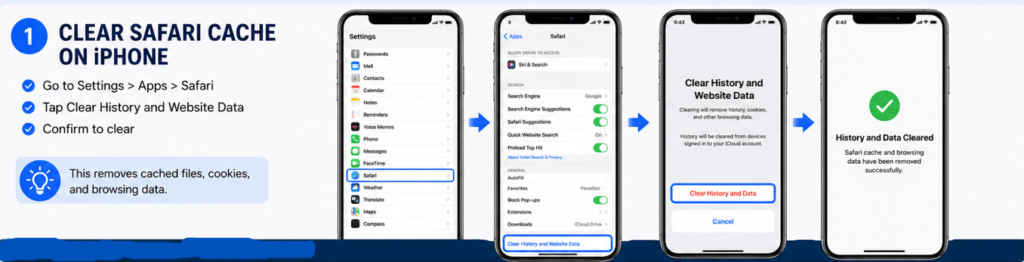
Safari stores website data, cookies, and browsing history.
Step 1: Open Settings
Open the Settings app.
Step 2: Scroll to Apps
Scroll down and tap Apps, then choose Safari.
Step 3: Tap Clear History and Website Data
Select:
Clear History and Website Data
Step 4: Confirm
Tap Clear History and Data.
Safari will remove:
- Cached website files
- Cookies
- Browsing history
- Temporary website data
What Happens After Clearing Safari Cache?
After clearing Safari cache:
- You’ll be signed out of many websites.
- Websites may load slightly slower the first time.
- New website data will be downloaded.
- Storage space may increase.
How to Clear Cache for Individual Apps
Unlike Android, Apple doesn’t provide a universal “Clear Cache” button for every app.
Some apps include their own cache settings.
For example:
Open the app’s Settings menu and look for options such as:
- Clear Cache
- Storage
- Free Up Space
How to Offload Apps to Clear Cached Data
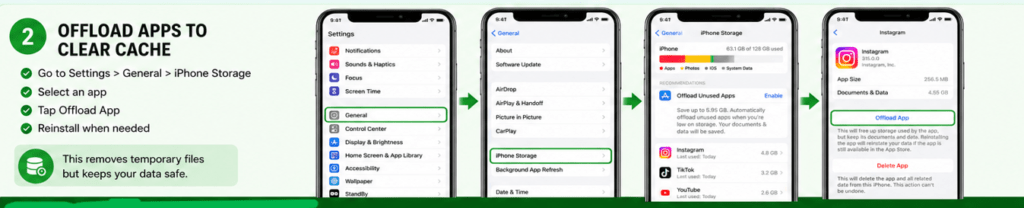
If an app doesn’t have a cache option, you can offload it.
Steps
- Open Settings
- Tap General
- Tap iPhone Storage
- Select the app
- Tap Offload App
This removes the app while keeping your personal data.
When you reinstall it, your documents remain but temporary files are removed.
How to Delete and Reinstall an App
If offloading doesn’t solve the problem, reinstall the app.
Steps
- Open Settings
- Tap General
- Select iPhone Storage
- Choose the app
- Tap Delete App
- Reinstall it from the App Store
This removes:
- Cached files
- Temporary data
- Corrupted files
Keep in mind some apps may require you to sign in again.
How to Clear Chrome Cache on iPhone

If you use Google Chrome instead of Safari:
Steps
- Open Chrome.
- Tap the three-dot menu.
- Open Settings.
- Tap Privacy and Security.
- Choose Delete Browsing Data.
- Select:
- Cached Images and Files
- Cookies (optional)
- Browsing History (optional)
- Tap Delete Browsing Data.
How to Clear Firefox Cache on iPhone
Firefox also lets you clear cache.
Steps
- Open Firefox.
- Tap the menu.
- Go to Settings.
- Tap Data Management.
- Select Cache.
- Tap Clear Private Data.
How to Clear Cache in Social Media Apps
Popular apps store a large amount of temporary data.
Examples include:
- TikTok
- Snapchat
- X (Twitter)
Some apps include cache settings.
If not:
- Offload the app.
- Delete and reinstall it.
How to Free Up Storage Without Clearing Everything
Besides clearing cache, you can free storage by:
- Removing old photos
- Deleting duplicate images
- Removing downloaded videos
- Clearing message attachments
- Deleting unused apps
- Emptying the Recently Deleted album
These methods often recover much more space than cache alone.
Does Restarting an iPhone Clear Cache?
Not completely.
Restarting:
- Clears temporary system memory (RAM)
- Stops background processes
- Refreshes system performance
However, it does not remove Safari cache or app cache.
Can You Automatically Clear Cache on iPhone?
There isn’t a built-in option that automatically clears all cache.
However, iOS automatically manages some temporary files when storage becomes low.
For manual control, periodically:
- Clear Safari history
- Offload unused apps
- Delete unnecessary files
- Restart your iPhone
Does Clearing Cache Delete Photos?
No.
Clearing cache does not remove:
- Photos
- Videos
- Contacts
- Messages
- Notes
It only removes temporary data unless you choose to delete personal files.
Does Clearing Cache Delete Passwords?
It depends.
If you clear Safari history and website data:
- Saved website logins may be removed from browser sessions.
- Passwords stored in iCloud Keychain remain safe.
Apps usually keep your login unless you delete the app.
Is It Safe to Clear Cache?
Yes.
Clearing cache is completely safe.
The only minor inconvenience is that:
- Websites reload fresh content.
- Some apps may ask you to sign in again.
- Cached images will be downloaded again.
There is no risk of damaging your iPhone.
How Often Should You Clear Cache?
Most users only need to clear cache:
- Every one to three months
- When storage is almost full
- After app crashes
- If Safari behaves strangely
- Before troubleshooting performance issues
Frequent cache clearing isn’t necessary because cache helps apps load faster.
Tips to Keep Your iPhone Running Smoothly
Follow these simple maintenance tips:
- Update iOS regularly.
- Keep at least 10–20% storage free.
- Delete unused apps.
- Restart your iPhone weekly.
- Remove duplicate photos.
- Offload large apps you rarely use.
- Clear Safari cache occasionally.
Common Mistakes to Avoid
Avoid these mistakes:
- Clearing cache every day
- Deleting important app data accidentally
- Removing apps without backing up data
- Confusing cache with personal files
- Using untrusted cleaning apps
iOS already handles many temporary files automatically.
Troubleshooting After Clearing Cache
If your iPhone is still slow:
Update iOS
Install the latest software updates.
Check Storage
Go to:
Settings → General → iPhone Storage
Remove large unused files.
Restart Your Device
A restart refreshes system resources.
Reinstall Problematic Apps
Apps with corrupted files often work better after reinstallation.
Reset Network Settings
If browsing problems continue:
Settings → General → Transfer or Reset iPhone → Reset → Reset Network Settings
Benefits of Clearing Cache Regularly
Regular maintenance can help:
- Improve browsing speed
- Fix loading errors
- Recover storage space
- Improve app responsiveness
- Reduce glitches
- Enhance overall performance
Read Our Guide On:
Android vs iPhone for Students
Conclusion
Knowing how to clear cache on iPhone is an easy way to improve performance, free up storage, and solve many common issues. While iOS automatically manages some temporary files, manually clearing Safari cache and managing app storage can make a noticeable difference, especially if your device feels slow or storage is running low.
Instead of clearing cache constantly, make it part of your regular device maintenance every few months or whenever you experience performance problems. Combined with software updates, removing unused apps, and keeping enough free storage, your iPhone will continue to run smoothly.
Read Our Guide On:
How to Speed Up an Android Phone: 20+ Easy Tips
Frequently Asked Questions
1. How do I clear cache on my iPhone?
Go to Settings → Apps → Safari → Clear History and Website Data to clear Safari’s cache. For apps, use their built-in cache option if available, or offload/delete and reinstall the app.
2. Does clearing cache free up storage?
Yes. Cached files can take up significant space over time, and clearing them helps recover storage.
3. Will clearing cache delete my photos?
No. Clearing cache only removes temporary files. Your photos, videos, and contacts remain safe.
4. Is clearing cache safe?
Yes. It’s a safe way to improve performance and fix browsing or app-related issues.
5. How often should I clear my iPhone cache?
Every one to three months is sufficient for most users, or whenever you notice slow performance or low storage.
6. Can I clear all app cache at once?
No. iOS doesn’t provide a single button to clear cache for all apps. Each app must be managed individually or by offloading/deleting it.
7. Why is my iPhone still slow after clearing cache?
The issue may be caused by low storage, outdated iOS, background apps, or hardware limitations. Updating iOS and freeing additional storage may help.
8. Does restarting my iPhone clear cache?
Restarting clears temporary memory (RAM) but does not remove browser or app cache.
Read Our Guide On:
How to Pause Location on Find My iPhone

Mehtab Hassan is the founder and tech writer at Brozly, where he publishes easy-to-understand articles on AI, software, cybersecurity, smartphones, laptops, and emerging technology. His goal is to help readers make smarter tech decisions through detailed reviews, practical tutorials, and beginner-friendly guides. He is passionate about exploring the latest innovations and delivering accurate, up-to-date content that everyone can understand.