If you’re looking for how to pause location on Find My iPhone, you’re probably trying to keep your current location private without permanently turning off Apple’s Find My feature. Whether you want some personal privacy, need to stop sharing your location temporarily, or simply want to understand how Find My works, this guide covers everything you need to know.
The good news is that Apple doesn’t provide a direct “Pause Location” button. However, there are several safe and effective methods that temporarily stop or hide your location depending on your needs.
In this beginner-friendly guide, you’ll learn how to pause your location, the pros and cons of each method, and what happens when you stop sharing your location.
What Is Find My on iPhone?
Find My is Apple’s built-in service that helps you:
- Locate your iPhone, iPad, Mac, or AirPods
- Share your location with family and friends
- Find lost Apple devices
- Track devices connected to your Apple ID
- Receive notifications about people and devices
It combines the old Find My iPhone and Find My Friends features into one app.
Can You Pause Location on Find My iPhone?
The short answer is No.
Apple does not offer a dedicated “Pause Location” feature.
Instead, you can temporarily stop your location from updating by using one of several methods, such as:
- Turning off Location Services
- Stopping location sharing
- Enabling Airplane Mode
- Turning off your iPhone
- Using another Apple device for location sharing
Each method works differently, so choosing the right one depends on your situation.
Method 1: Stop Sharing Your Location
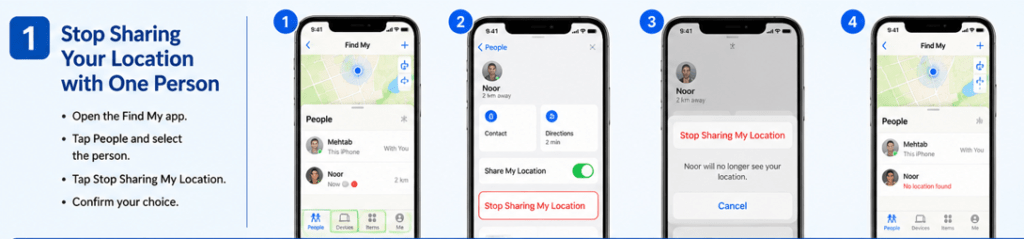
This is the safest method if you only want certain people to stop seeing your location.
Steps
- Open the Find My app.
- Tap the People tab.
- Select the person.
- Tap Stop Sharing My Location.
- Confirm your choice.
What Happens?
- They can no longer see your live location.
- Your device remains connected to Find My.
- You can share your location again later.
Best For
- Temporary privacy
- Friends
- Family members
Method 2: Turn Off Share My Location
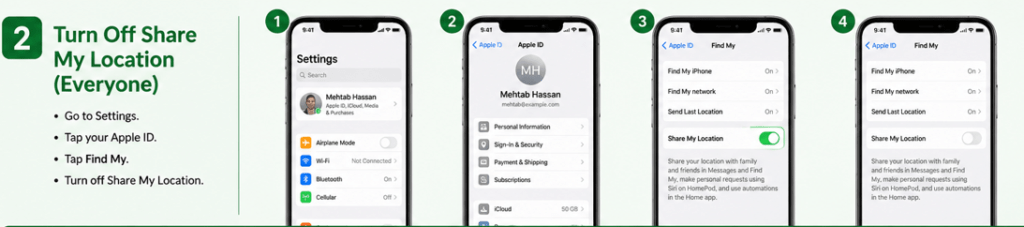
You can stop sharing with everyone at once.
Steps
- Open Settings.
- Tap your Apple ID at the top.
- Select Find My.
- Turn off Share My Location.
Pros
- Stops sharing with everyone.
- Easy to turn back on.
Cons
- Family members will notice your location is unavailable.
Method 3: Turn Off Location Services
Another option is disabling Location Services completely.
Steps
- Open Settings.
- Tap Privacy & Security.
- Select Location Services.
- Turn off Location Services.
What Happens?
- Apps cannot access your GPS.
- Find My stops updating your live location.
- Maps and weather apps may stop working correctly.
Method 4: Enable Airplane Mode

Airplane Mode disconnects your phone from mobile networks, Wi-Fi, and Bluetooth.
Steps
- Open Control Center.
- Tap the Airplane Mode icon.
Or
Go to:
Settings → Airplane Mode → On
What Happens?
Your phone cannot send updated location information while disconnected.
Keep in Mind
If Wi-Fi is manually turned back on, some location features may become available again.
Method 5: Turn Off Your iPhone
Turning off your iPhone stops live location updates.
Steps
- Press and hold the Side button with a Volume button.
- Slide to power off.
- Wait until the device shuts down.
Result
Your last known location may remain visible, but your live location stops updating.
Method 6: Use Another Apple Device for Location
If you own multiple Apple devices, you can change which device shares your location.
Steps
- Open Settings on another Apple device.
- Tap your Apple ID.
- Select Find My.
- Tap Use This iPhone (or iPad) as My Location.
Your Find My location now updates from that device instead.
How to Stop Sharing With One Person Only
Sometimes you don’t want to hide from everyone.
Here’s how:
- Open Find My.
- Tap People.
- Choose the contact.
- Tap Stop Sharing My Location.
Everyone else will continue seeing your location normally.
Does Airplane Mode Hide Your Location?
Yes—but only while your phone has no network connection.
When Airplane Mode is enabled:
- GPS updates stop being shared.
- Find My cannot update your live location.
- Others may only see your last known location.
Can Someone Tell If You Paused Your Location?
It depends on the method you use.
Stop Sharing
Yes.
The person sees:
Location Not Available
Turn Off Location Services
Usually, your location simply stops updating.
Airplane Mode
People may only notice your location hasn’t changed.
Turn Off Phone
Others generally see your last known location.
Will Find My Notify Someone If I Stop Sharing?
No.
Apple does not send a notification saying:
“Mehtab stopped sharing location.”
However, if someone checks the Find My app, they’ll notice your location is unavailable.
What Happens to Your Last Known Location?
Depending on your settings, Find My may display:
- Your last recorded location
- The time it was last updated
It won’t continue tracking your movement until location sharing resumes.
Difference Between Turning Off Find My and Stopping Location Sharing
| Stop Sharing Location | Turn Off Find My |
|---|---|
| Hides your location | Disables Find My device tracking |
| Easier to reverse | More significant security impact |
| Keeps device protection | Removes important security features |
| Recommended for privacy | Not recommended unless necessary |
Reasons People Pause Their Location
People temporarily stop location sharing for many reasons.
Common examples include:
- Personal privacy
- Surprise events
- Traveling
- Taking a break from sharing
- Testing apps
- Conserving battery
- Avoiding constant tracking
Privacy is a personal choice, and Apple gives users control over who can access their location.
Is It Safe to Turn Off Find My?
Generally, No.
Turning off Find My means:
- Lost device tracking stops.
- Activation Lock protection is disabled.
- Recovering your iPhone becomes more difficult.
If your goal is simply privacy, it’s better to stop sharing your location rather than disabling Find My entirely.
Tips for Protecting Your Location Privacy
- Only share your location with trusted people.
- Review your Find My contacts regularly.
- Remove people you no longer need to share with.
- Keep iOS updated.
- Enable two-factor authentication.
- Check which apps have location access.
- Use “While Using the App” permissions whenever possible.
Apple’s Privacy page explains how your personal information and location data are protected.
Common Mistakes to Avoid
Avoid these common errors:
- Turning off Find My instead of location sharing.
- Forgetting to re-enable location sharing.
- Assuming Airplane Mode permanently hides your location.
- Disabling Location Services without understanding the impact on other apps.
- Sharing your location with too many people.
Read Our Guide On:
Frequently Asked Questions (FAQs)
1. Can I pause my location on Find My without anyone knowing?
Apple doesn’t provide a hidden pause feature. Depending on the method you use, people may notice your location is unavailable or no longer updating.
2. Does Airplane Mode stop Find My?
Yes. While Airplane Mode is active and the device is disconnected from networks, your live location won’t update.
3. Can I stop sharing with one person only?
Yes. Open the Find My app, select the person, and tap Stop Sharing My Location.
4. Will Find My notify someone when I stop sharing?
No. Apple doesn’t send a notification, but the person can see that your location is unavailable if they check the app.
5. Does turning off my iPhone pause location sharing?
Yes. Once your iPhone is powered off, your live location stops updating, though the last known location may still be visible.
6. Can I still use Find My after turning location sharing back on?
Yes. Simply re-enable Share My Location, and your live location will begin updating again.
7. Is turning off Find My the same as stopping location sharing?
No. Stopping location sharing only hides your location from people, while turning off Find My disables important device tracking and security features.
Read Our Guide On:
Android vs iPhone for Students
Conclusion
Although Apple doesn’t include a dedicated Pause Location button in Find My, there are several effective ways to temporarily stop sharing your location. The best option depends on your needs. If you only want privacy from specific people, use Stop Sharing My Location. If you want to hide your location from everyone, turning off Share My Location is usually the most practical solution.
Avoid disabling Find My unless absolutely necessary, as it provides important security features like device tracking and Activation Lock. By understanding the available options, you can protect your privacy while keeping your iPhone secure.
Read Our Guide On:
How to Speed Up an Android Phone

Mehtab Hassan is the founder and tech writer at Brozly, where he publishes easy-to-understand articles on AI, software, cybersecurity, smartphones, laptops, and emerging technology. His goal is to help readers make smarter tech decisions through detailed reviews, practical tutorials, and beginner-friendly guides. He is passionate about exploring the latest innovations and delivering accurate, up-to-date content that everyone can understand.