How to speed up an Android Phone?
If your Android phone feels slow, freezes often, or takes too long to open apps, you’re not alone. Over time, every smartphone collects unnecessary files, background apps, and outdated data that reduce its performance. The good news is that you don’t need to buy a new phone right away. In most cases, a few simple changes can make your device much faster.
In this guide, you’ll learn how to speed up Android phone performance using safe, beginner-friendly methods. Whether you have a Samsung, Xiaomi, Google Pixel, OnePlus, Motorola, Oppo, Vivo, or any other Android device, these tips will help improve speed and responsiveness.
Read Our Guide On:
What Is the Role of SoCs in Smartphones?
Why Does an Android Phone Become Slow?
There are several reasons why Android phones lose speed over time.
Common causes include:
- Low storage space
- Too many background apps
- Outdated Android version
- Large cache files
- Too many widgets and animations
- Malware or unwanted apps
- Old hardware
Understanding the cause helps you choose the best solution.
Restart Your Android Phone
One of the easiest ways to improve performance is by restarting your phone.
A restart:
- Clears temporary memory (RAM)
- Stops unnecessary background processes
- Refreshes the operating system
- Fixes small software glitches
Restart your phone at least once every few days for smoother performance.
Free Up Storage Space
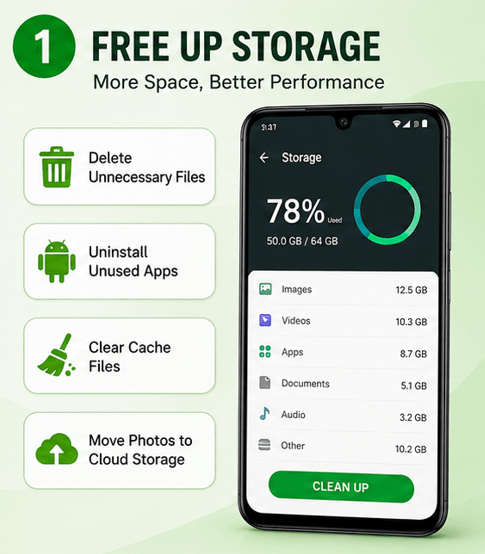
Low storage is one of the biggest reasons an Android phone becomes slow.
Delete Unnecessary Files
Remove:
- Old screenshots
- Duplicate photos
- Large videos
- Downloaded files
- Unused documents
Uninstall Apps You Don’t Use
Many users install apps they rarely open.
To remove unused apps:
- Open Settings
- Tap Apps
- Select the app
- Tap Uninstall
Keeping only necessary apps improves speed and frees storage.
Clear App Cache
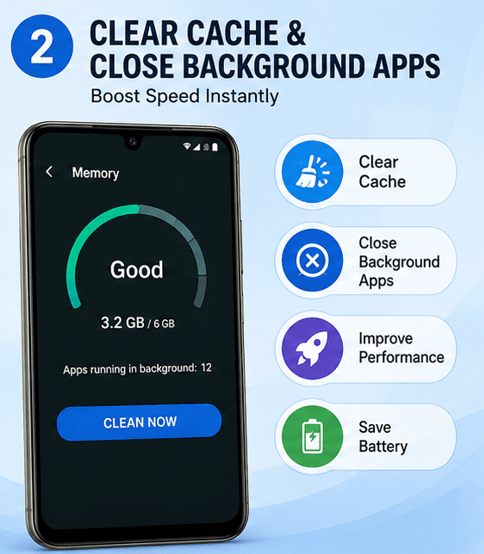
Apps store temporary files called cache.
Over time these files become very large.
How to Clear Cache
- Open Settings
- Go to Apps
- Select an app
- Tap Storage
- Choose Clear Cache
Do this for apps like:
- Chrome
- TikTok
- YouTube
Avoid clearing app data unless necessary because it removes saved information.
Update Your Android Software
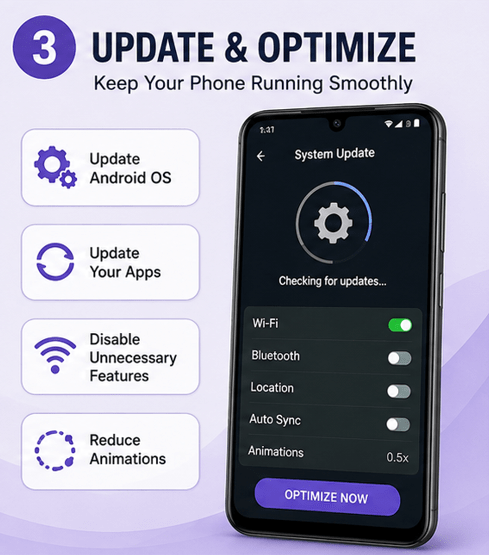
Software updates include:
- Performance improvements
- Bug fixes
- Better battery optimization
- Security updates
To check:
Settings → System → Software Update
Install updates whenever available.
Update Your Apps
Old apps may contain bugs that slow your phone.
Update apps by:
- Open Google Play Store
- Tap your profile
- Choose Manage Apps
- Tap Update All
Updated apps usually run more efficiently.
Remove Unnecessary Widgets
Widgets constantly refresh information.
Examples include:
- Weather
- News
- Calendar
- Stocks
Too many widgets use RAM and battery.
Keep only the widgets you actually use.
Reduce Animations
Android animations make the interface look smooth but require processing power.
Reducing animations makes your phone feel much faster.
Enable Developer Options
- Open Settings
- Tap About Phone
- Tap Build Number seven times
- Return to Settings
- Open Developer Options
Change:
- Window Animation Scale → 0.5x
- Transition Animation Scale → 0.5x
- Animator Duration Scale → 0.5x
You can also turn them off completely.
Disable or Remove Bloatware
Many Android phones come with pre-installed apps.
These apps:
- Use storage
- Consume RAM
- Run in the background
Disable apps you don’t use.
Go to:
Settings → Apps → Disable
Not every app can be removed, but many can be disabled safely.
Limit Background Apps
Too many apps running in the background reduce available memory.
Close apps you’re no longer using.
Also check:
Settings → Battery → Background Usage
Restrict unnecessary apps from running constantly.
Use Lite Versions of Apps
Some apps are heavy and consume a lot of RAM.
Try lighter alternatives such as:
- Facebook Lite
- Messenger Lite
- Google Go
- Maps Go
Lite apps use fewer system resources.
Keep at Least 20% Free Storage
Android works best when storage isn’t full.
Experts recommend keeping:
- At least 10 GB free
- Or around 20% of total storage available
This gives Android enough room for temporary files.
Delete Downloaded Files
Many downloaded files remain forgotten.
Check:
- Downloads folder
- WhatsApp media
- Telegram files
- Large PDFs
- Videos
Removing these files can free several gigabytes.
Turn Off Auto Sync for Unnecessary Accounts
Every synced account uses system resources.
Review:
- Email accounts
- Cloud storage
- Social media
Disable sync for accounts you rarely use.
Scan for Malware
Malicious apps can dramatically slow your phone.
Signs include:
- Random advertisements
- Fast battery drain
- Overheating
- High data usage
Download apps only from the Google Play Store whenever possible.
If you suspect malware, use a trusted mobile security app.
Avoid Live Wallpapers
Animated wallpapers continuously use the processor and battery.
Switch to a static wallpaper for better performance.
Disable Auto-Starting Apps
Some apps automatically launch every time you restart your phone.
If your manufacturer provides startup management:
- Disable unnecessary startup apps
- Keep only essential apps enabled
This speeds up boot time.
Use Device Care or Phone Manager
Many Android phones include built-in optimization tools.
Examples:
- Samsung Device Care
- Xiaomi Security App
- Oppo Phone Manager
- Vivo iManager
These tools can:
- Clean junk files
- Close background apps
- Check storage
- Optimize memory
Use them occasionally, but avoid running them repeatedly.
Move Photos and Videos to Cloud Storage
Photos and videos take up the most storage.
Consider moving them to:
- Google Photos
- OneDrive
- Dropbox
After backing them up, delete local copies to free space.
Remove Unused Downloads
Music, movies, podcasts, and offline maps consume storage.
Delete content you no longer need.
Keep Your Home Screen Clean
Too many icons, folders, and widgets require extra resources.
A simple home screen often feels faster and is easier to navigate.
Turn Off Unused Features
Disable features you’re not currently using:
- Bluetooth
- NFC
- Nearby Share
- Location
- Wi-Fi scanning
This can improve battery life and slightly reduce background activity.
Use a Fast Launcher
Some manufacturer launchers include heavy animations.
Lightweight launchers often perform better on older phones.
Popular options include:
- Nova Launcher
- Niagara Launcher
- Lawnchair Launcher
These launchers are known for smooth performance.
Check Battery Health
An old battery may cause slower performance.
Signs include:
- Sudden shutdowns
- Rapid battery drain
- Phone overheating
Replacing a worn battery can noticeably improve performance, especially on older devices.
Factory Reset (Last Resort)
If nothing else works, consider a factory reset.
Before resetting:
- Back up photos
- Save contacts
- Sync important files
- Remember passwords
To reset:
Settings → System → Reset → Factory Data Reset
A factory reset removes all personal data, so use it only when necessary.
Tips to Keep Your Android Phone Fast
Follow these habits regularly:
- Restart your phone weekly
- Keep storage below 80% full
- Update Android and apps
- Delete unused files
- Clear cache occasionally
- Avoid installing unnecessary apps
- Use trusted applications only
- Remove apps you no longer use
- Keep widgets to a minimum
- Back up photos to cloud storage
These small habits help maintain good performance over time.
Common Mistakes That Slow Down Android Phones
Avoid these mistakes:
- Installing too many apps
- Ignoring software updates
- Filling storage completely
- Running multiple heavy apps simultaneously
- Downloading apps from unknown sources
- Using too many live wallpapers and widgets
- Never restarting the phone
Signs Your Phone May Need Replacement
Sometimes software optimization isn’t enough.
Consider upgrading if:
- The phone is more than five years old
- Apps frequently crash
- Updates are no longer available
- The battery no longer holds a charge
- Performance remains poor after a factory reset
Older hardware eventually reaches its limits.
Android vs iPhone for Students: Which is Better?
Frequently Asked Questions
How can I make my Android phone faster?
Restart your phone, clear cache, free storage, update Android, remove unused apps, and reduce background processes. These are the safest and most effective ways to improve performance.
Does clearing cache speed up an Android phone?
Yes. Clearing cache removes temporary files that may slow down apps over time. It can improve app responsiveness without deleting personal data.
Why is my Android phone suddenly slow?
Sudden slowdowns can happen because of low storage, too many background apps, software bugs, malware, or a recent app causing performance issues.
Is it safe to use phone cleaner apps?
Most Android phones already include built-in optimization tools. Many third-party cleaner apps provide little benefit and may even consume additional resources.
How much free storage should an Android phone have?
Keeping around 20% of your storage free helps Android manage temporary files efficiently and maintain smooth performance.
Will a factory reset make my phone faster?
Yes. A factory reset often restores performance by removing unnecessary files, apps, and settings. Always back up your important data before resetting.
Do software updates improve phone speed?
In many cases, yes. Updates often include bug fixes, security improvements, and performance optimizations that make devices run more smoothly.
Conclusion
Learning how to speed up Android phone performance doesn’t require advanced technical skills. Simple steps like freeing storage, clearing cache, updating software, removing unused apps, and limiting background activity can significantly improve your phone’s speed and responsiveness.
Regular maintenance is the key to keeping your Android device running smoothly. By following the tips in this guide, you can enjoy faster app launches, smoother multitasking, better battery performance, and a more reliable smartphone experience without spending money on a new device.

Mehtab Hassan is the founder and tech writer at Brozly, where he publishes easy-to-understand articles on AI, software, cybersecurity, smartphones, laptops, and emerging technology. His goal is to help readers make smarter tech decisions through detailed reviews, practical tutorials, and beginner-friendly guides. He is passionate about exploring the latest innovations and delivering accurate, up-to-date content that everyone can understand.