If your internet feels slow, changing your DNS server is one of the easiest ways to improve your online experience. While it won’t increase your internet plan’s speed, it can make websites load faster, reduce delays when opening web pages, and improve security.
In this guide, you’ll learn what DNS is, how it works, the best DNS servers for faster internet, and how to change your DNS settings on any device.
What Is a DNS Server?
A DNS (Domain Name System) server acts like the internet’s phonebook.
When you type a website such as www.example.com, your device asks a DNS server to find the website’s IP address. Once the DNS server responds, your browser connects to the website.
Without DNS, you would need to remember numerical IP addresses instead of simple website names.
For example:
- Website: google.com
- IP Address: 142.250.xxx.xxx
DNS automatically handles this translation in seconds.
Can Changing DNS Make Your Internet Faster?
Yes—but with some limitations.
A faster DNS server can:
- Reduce website lookup time
- Open websites more quickly
- Improve browsing responsiveness
- Increase DNS reliability
- Enhance online privacy
- Block malicious websites (depending on the provider)
However, changing DNS will not:
- Increase your internet download speed
- Improve upload speed
- Reduce game ping significantly
- Upgrade your ISP plan
Think of DNS like finding the address of a restaurant. A faster search gets you the address quicker, but the drive to the restaurant takes the same amount of time.
How DNS Affects Browsing Speed
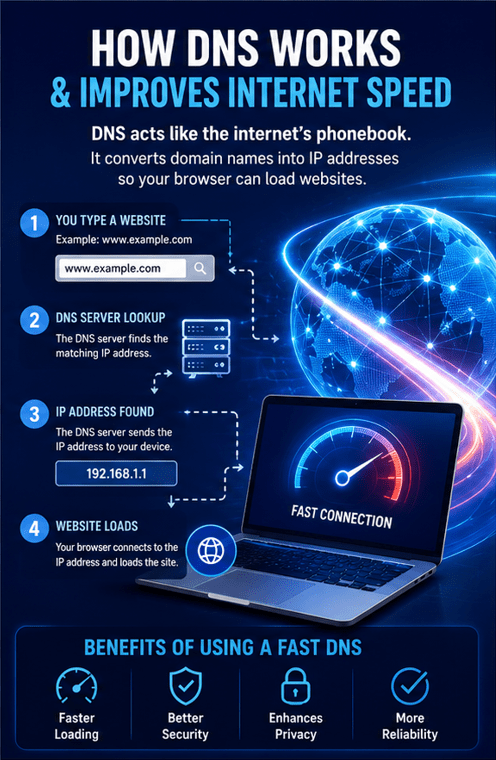
Every website visit begins with a DNS lookup.
If your DNS server responds slowly, every website takes a little longer to start loading.
A fast DNS server can reduce this waiting time.
Although the difference is usually measured in milliseconds, those small improvements add up across hundreds of websites.
Benefits of Using a Better DNS Server
Switching from your ISP’s default DNS offers several advantages.
Faster Website Loading
Popular DNS providers have servers around the world that respond quickly.
Better Reliability
Premium public DNS services rarely go offline.
Improved Privacy
Many DNS providers avoid selling user data and support encrypted DNS protocols.
Enhanced Security
Some DNS servers automatically block:
- Malware websites
- Phishing attacks
- Fake websites
- Botnets
Better Global Performance
Large DNS providers use worldwide networks that automatically connect you to nearby servers.
Best DNS Servers for Faster Internet
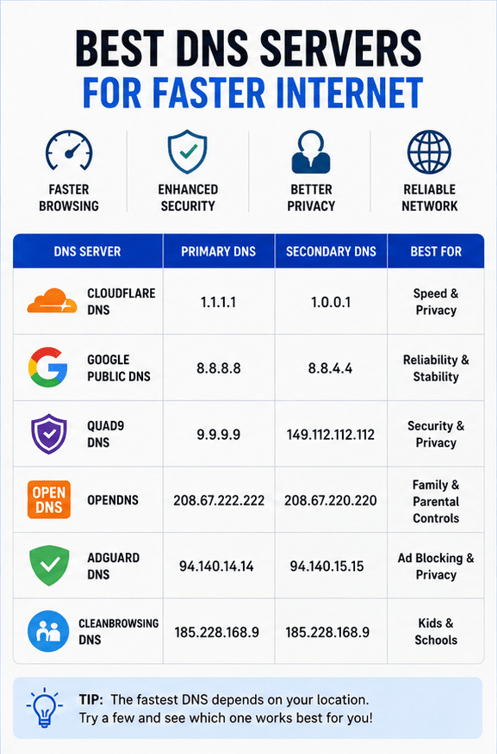
Here are the top DNS servers available today.
Cloudflare DNS
Cloudflare is one of the fastest DNS services available.
DNS Addresses
Primary:
1.1.1.1
Secondary:
1.0.0.1
Pros
- Extremely fast
- Strong privacy policy
- Free forever
- Supports DNS over HTTPS (DoH)
- Supports DNS over TLS (DoT)
- Easy to use
Cons
- No parental controls
Best for:
- Speed
- Privacy
- Everyday browsing
Google Public DNS
Google Public DNS is one of the most trusted DNS services worldwide.
DNS Addresses
Primary:
8.8.8.8
Secondary:
8.8.4.4
Pros
- Highly reliable
- Excellent uptime
- Fast global servers
- Easy configuration
Cons
- Less privacy-focused than Cloudflare
Best for:
- General users
- Stable internet connections
Quad9 DNS
Quad9 focuses heavily on online security.
DNS Addresses
Primary:
9.9.9.9
Secondary:
149.112.112.112
Pros
- Blocks malicious domains
- Strong privacy
- Free service
- Good worldwide performance
Cons
- Slightly slower than Cloudflare in some regions
Best for:
- Security-conscious users
OpenDNS
OpenDNS has been trusted for years and includes additional security features.
DNS Addresses
Primary:
208.67.222.222
Secondary:
208.67.220.220
Pros
- Reliable
- Optional parental controls
- Malware protection
- Custom filtering
Cons
- Some advanced features require a paid plan
Best for:
- Families
- Home networks
AdGuard DNS
AdGuard DNS focuses on privacy and blocking unwanted content.
DNS Addresses
Primary:
94.140.14.14
Secondary:
94.140.15.15
Pros
- Blocks ads
- Stops trackers
- Malware filtering
- Free option
Cons
- Some websites may not display correctly if ads are blocked
Best for:
- Privacy
- Ad blocking
CleanBrowsing DNS
CleanBrowsing is designed for families and schools.
Features
- Adult content filtering
- Safe Search enforcement
- Security protection
- Child-friendly browsing
Best for:
- Parents
- Schools
- Educational institutions
DNS Server Comparison Table
| DNS Provider | Primary DNS | Secondary DNS | Speed | Security | Privacy |
|---|---|---|---|---|---|
| Cloudflare | 1.1.1.1 | 1.0.0.1 | Excellent | Very Good | Excellent |
| Google DNS | 8.8.8.8 | 8.8.4.4 | Excellent | Good | Good |
| Quad9 | 9.9.9.9 | 149.112.112.112 | Very Good | Excellent | Excellent |
| OpenDNS | 208.67.222.222 | 208.67.220.220 | Very Good | Excellent | Good |
| AdGuard DNS | 94.140.14.14 | 94.140.15.15 | Very Good | Excellent | Excellent |
| CleanBrowsing | Varies | Varies | Good | Excellent | Good |
Which DNS Server Is the Fastest?
The fastest DNS depends on your location.
Generally:
- Cloudflare DNS
- Google Public DNS
- Quad9
- AdGuard DNS
- OpenDNS
You can use DNS benchmark tools to test which provider performs best in your region.
How to Change DNS on Windows
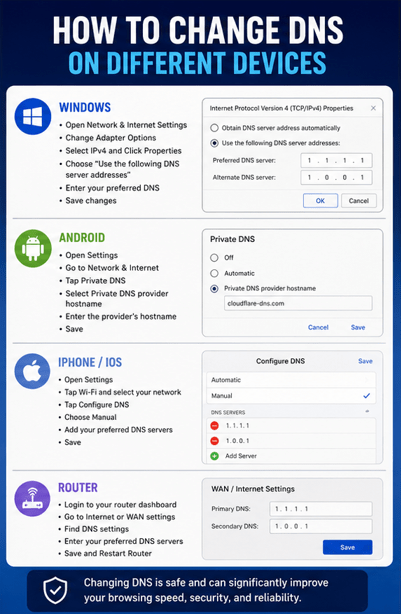
Changing DNS takes only a few minutes.
Steps
- Open Control Panel.
- Go to Network and Internet.
- Open Network and Sharing Center.
- Select Change Adapter Settings.
- Right-click your network.
- Choose Properties.
- Open Internet Protocol Version 4 (TCP/IPv4).
- Select Use the following DNS server addresses.
- Enter your preferred DNS.
- Save the settings.
Restart your browser afterward.
How to Change DNS on Android
- Open Settings.
- Go to Network & Internet.
- Tap Private DNS.
- Choose Private DNS Provider Hostname.
- Enter the provider’s hostname (such as Cloudflare or AdGuard).
- Save the settings.
How to Change DNS on iPhone
- Open Settings.
- Tap Wi-Fi.
- Select your connected network.
- Tap Configure DNS.
- Choose Manual.
- Remove existing DNS servers.
- Add your preferred DNS.
- Save changes.
Change DNS on macOS
- Open System Settings.
- Select Network.
- Choose your active connection.
- Open DNS settings.
- Add new DNS addresses.
- Apply changes.
How to Change DNS on Your Router
Changing DNS on your router automatically applies the settings to every connected device.
This includes:
- Smartphones
- Tablets
- Smart TVs
- Gaming consoles
- Laptops
- Desktop computers
- Smart home devices
Simply log in to your router’s admin panel, locate the Internet or WAN DNS settings, replace the default DNS addresses with your chosen provider, save the changes, and restart the router.
How to Test DNS Speed
After changing your DNS, compare performance by:
- Opening websites you visit often
- Running online DNS benchmark tools
- Checking page loading times
- Monitoring browsing responsiveness
If another DNS performs better, you can switch again at any time.
Is Public DNS Safe?
Yes.
Major public DNS providers use secure infrastructure and support modern encryption standards.
Trusted providers include:
- Cloudflare
- Google Public DNS
- Quad9
- OpenDNS
- AdGuard DNS
Avoid unknown DNS services unless you trust the provider.
Tips for Faster Internet Beyond DNS
DNS is only one part of internet performance.
For even faster browsing:
- Restart your router regularly.
- Update your router firmware.
- Use Wi-Fi 6 if available.
- Move closer to your Wi-Fi router.
- Use a wired Ethernet connection.
- Remove unused browser extensions.
- Clear browser cache occasionally.
- Scan for malware.
- Upgrade an outdated router.
- Choose a faster internet plan if necessary.
Common DNS Problems and Solutions
Websites Not Loading
Flush your DNS cache or restart your device.
Slow Browsing
Try another DNS provider.
DNS Errors
Check that the DNS addresses were entered correctly.
Some Websites Are Blocked
Certain DNS services block malicious or adult websites by design. Switch to another provider if appropriate.
Best DNS Server for Different Needs
Best for Speed
Cloudflare DNS
Best for Reliability
Google Public DNS
Best for Security
Quad9
Best for Families
OpenDNS
Best for Ad Blocking
AdGuard DNS
Best for Schools
CleanBrowsing
Read Our Guide On:
How to Fix Slow Internet: 15 Easy Ways
Frequently Asked Questions
What is the fastest DNS server?
Cloudflare (1.1.1.1) is widely considered one of the fastest public DNS servers, although the best performance depends on your location.
Will changing DNS increase internet speed?
It won’t increase your download or upload speeds, but it can reduce the time it takes for websites to begin loading.
Is Google DNS better than Cloudflare?
Google DNS is known for reliability, while Cloudflare often offers better privacy and slightly faster response times.
Is changing DNS safe?
Yes. Using trusted DNS providers like Cloudflare, Google, or Quad9 is safe for most users.
Can DNS improve gaming?
DNS may reduce the time it takes to connect to game servers or launch online services, but it usually won’t lower in-game ping significantly.
Which DNS is best for privacy?
Cloudflare, Quad9, and AdGuard DNS are strong choices for users who value privacy.
Do I need to restart my router after changing DNS?
If you change DNS on your router, restarting it is recommended. If you change DNS on a single device, restarting the browser or device is usually enough.
Can I switch back to my ISP’s DNS later?
Yes. You can restore your original DNS settings at any time if needed.
Conclusion
Choosing one of the best DNS servers for faster internet is a simple and free way to improve your browsing experience. While it won’t boost your internet plan’s speed, it can make websites open faster, improve reliability, and provide additional security and privacy.
For most users, Cloudflare DNS (1.1.1.1) is the best overall choice because it combines speed, privacy, and ease of use. If security is your top priority, Quad9 is an excellent option, while Google Public DNS remains a dependable choice for stability. Families may prefer OpenDNS or CleanBrowsing for their filtering features, and users looking to block ads and trackers can benefit from AdGuard DNS.
Test a few trusted providers to see which performs best in your area, and enjoy a faster, safer, and more reliable browsing experience.

Mehtab Hassan is the founder and tech writer at Brozly, where he publishes easy-to-understand articles on AI, software, cybersecurity, smartphones, laptops, and emerging technology. His goal is to help readers make smarter tech decisions through detailed reviews, practical tutorials, and beginner-friendly guides. He is passionate about exploring the latest innovations and delivering accurate, up-to-date content that everyone can understand.