If your internet feels slower than usual, you’re not alone. Slow internet can make simple tasks like browsing websites, streaming videos, attending online meetings, or playing games frustrating. The good news is that you can often solve the problem without calling your internet service provider.
In this guide, you’ll learn how to fix slow internet using simple troubleshooting steps that work for Wi-Fi, mobile internet, and wired connections. Whether you’re at home or in the office, these tips can help improve your internet speed and stability.
Why Is Your Internet Slow?
There are many reasons why your internet connection may be slow. Some of the most common causes include:
- Weak Wi-Fi signal
- Too many connected devices
- Outdated router firmware
- Background downloads or updates
- ISP network congestion
- Old networking equipment
- Malware or viruses
- Browser issues
- Poor router placement
Finding the real cause is the first step toward fixing the issue.
Check Your Internet Speed First
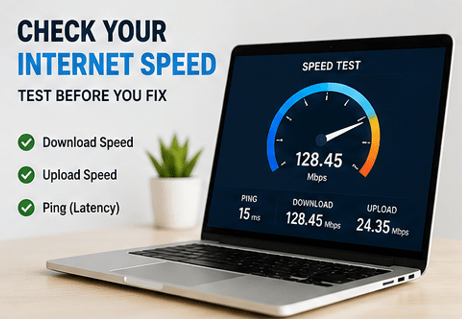
Before making any changes, test your current internet speed.
A speed test measures:
- Download speed
- Upload speed
- Ping (latency)
Compare your results with the speed promised in your internet plan. If the results are much lower, the issue may be with your network or your ISP.
Restart Your Router and Modem
One of the easiest fixes is restarting your networking equipment.
How to Restart Properly
- Turn off the modem.
- Turn off the router.
- Wait 30 to 60 seconds.
- Turn the modem back on.
- Wait until all lights stabilize.
- Turn on the router.
- Reconnect your devices.
This clears temporary errors and refreshes your internet connection.
Move Your Router to a Better Location
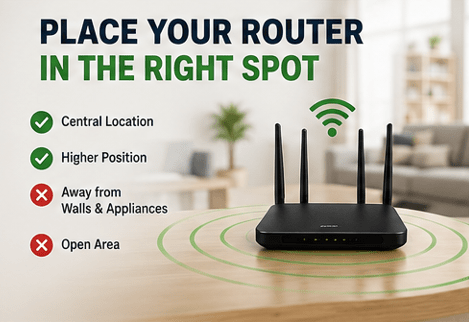
Router placement greatly affects Wi-Fi performance.
Best Router Placement
- Place it in the center of your home.
- Keep it elevated.
- Avoid thick walls.
- Stay away from microwaves.
- Keep it away from cordless phones.
- Avoid metal cabinets.
Better placement means stronger Wi-Fi coverage throughout your home.
Reduce the Number of Connected Devices
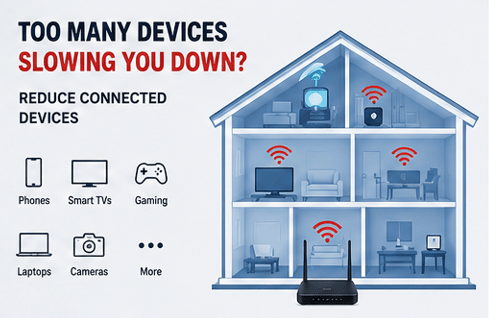
Every connected device shares your available bandwidth.
Common bandwidth users include:
- Smart TVs
- Gaming consoles
- Security cameras
- Smartphones
- Tablets
- Computers
- Smart home devices
Disconnect devices you’re not using to improve speed.
Use the 5 GHz Wi-Fi Band
Many modern routers support two Wi-Fi bands:
2.4 GHz
- Longer range
- Slower speed
- Better through walls
5 GHz
- Faster speed
- Lower interference
- Best for streaming and gaming
- Shorter range
If you’re close to your router, use the 5 GHz network.
Update Your Router Firmware
Router manufacturers release updates that improve:
- Security
- Stability
- Performance
- Bug fixes
Log in to your router’s settings and check for firmware updates.
Restart Your Device
Sometimes the problem isn’t the internet—it’s your computer or phone.
Restarting your device:
- Clears memory
- Stops unnecessary apps
- Refreshes network settings
- Fixes temporary glitches
Close Background Apps
Some applications use your internet without you noticing.
Examples include:
- Cloud backups
- Software updates
- Steam downloads
- Windows updates
- Video uploads
- Torrent software
Close unnecessary apps while using the internet.
Scan for Malware
Malware can secretly use your internet connection.
Signs include:
- Slow browsing
- Unexpected downloads
- Pop-up ads
- High network usage
Use trusted antivirus software to scan your device regularly.
Clear Browser Cache
A cluttered browser cache can slow website loading.
Clear:
- Cache
- Cookies
- Temporary files
After clearing, restart your browser.
Change Your DNS Server
Your DNS server translates website names into IP addresses.
Popular free DNS providers include:
Changing DNS may improve browsing speed and website loading time.
Use an Ethernet Cable
A wired connection is usually faster than Wi-Fi.
Benefits include:
- Lower latency
- Faster speeds
- Better reliability
- Stable video calls
- Better online gaming
Whenever possible, connect your computer directly to the router.
Limit Streaming Quality
Streaming in 4K uses a lot of bandwidth.
If your internet is slow:
- Stream in 1080p
- Pause downloads
- Avoid multiple streams at once
This frees up bandwidth for other activities.
Upgrade Your Router
Older routers may not support modern internet speeds.
Consider replacing your router if:
- It’s over five years old.
- Wi-Fi frequently disconnects.
- It doesn’t support Wi-Fi 5 or Wi-Fi 6.
- You recently upgraded your internet plan.
A modern router can significantly improve wireless performance.
Contact Your Internet Service Provider
If nothing works, your ISP may be experiencing problems.
Ask them about:
- Network outages
- Line issues
- Signal strength
- Speed throttling
- Available plan upgrades
Sometimes the problem is outside your home.
How to Fix Slow Internet on Windows
If you use Windows, try these steps:
Restart the Network Adapter
- Open Network Settings.
- Disable the adapter.
- Enable it again.
Update Network Drivers
Open Device Manager and update your Wi-Fi or Ethernet driver.
Forget and Reconnect to Wi-Fi
Remove the saved network and reconnect using your password.
Disable VPN
VPNs can reduce internet speed depending on the server location.
How to Fix Slow Internet on Android
Android users can improve internet speed by:
- Restarting the phone
- Turning Airplane Mode on and off
- Clearing browser cache
- Updating Android
- Resetting network settings
- Disabling unused apps
- Switching between Wi-Fi and mobile data
How to Fix Slow Internet on iPhone
If your iPhone internet is slow:
- Restart the device.
- Toggle Airplane Mode.
- Forget the Wi-Fi network.
- Reconnect.
- Update iOS.
- Reset network settings if needed.
Tips to Keep Your Internet Fast
Follow these habits regularly:
- Restart your router once every few weeks.
- Keep firmware updated.
- Change your Wi-Fi password.
- Remove unknown devices.
- Place the router in an open area.
- Avoid overcrowding your network.
- Use strong Wi-Fi security.
- Upgrade old hardware when necessary.
Common Signs of Slow Internet
You may have a slow internet connection if you notice:
- Websites loading slowly
- Buffering videos
- Lag during online gaming
- Video calls freezing
- Downloads taking too long
- Frequent Wi-Fi disconnects
Recognizing these signs helps you troubleshoot faster.
When Should You Upgrade Your Internet Plan?
Consider upgrading if:
- Your family has many connected devices.
- You stream 4K videos regularly.
- You work from home.
- You upload large files.
- You play online games frequently.
A faster internet plan may solve bandwidth-related issues.
Read Our Guide On:
Best DNS Servers for Faster Internet
Frequently Asked Questions
Why is my internet suddenly so slow?
Sudden slow internet can happen because of router problems, ISP outages, background downloads, weak Wi-Fi signals, or too many connected devices.
Can restarting the router improve internet speed?
Yes. Restarting your router clears temporary issues and refreshes your internet connection, which often improves speed.
Does router location affect Wi-Fi speed?
Yes. A centrally placed router with fewer obstacles provides stronger Wi-Fi coverage and faster speeds.
How often should I restart my router?
Restarting your router every few weeks helps maintain stable performance, though you can restart it anytime if you experience slow speeds.
Can malware slow down my internet?
Yes. Malware can consume bandwidth in the background, making your internet feel slower than normal.
Is Ethernet faster than Wi-Fi?
Yes. Ethernet connections are generally faster, more stable, and have lower latency than wireless connections.
Should I upgrade my router?
If your router is more than five years old or doesn’t support modern Wi-Fi standards, upgrading can improve speed and coverage.
What internet speed is good for streaming?
For HD streaming, around 5–10 Mbps is generally sufficient, while 4K streaming typically benefits from 25 Mbps or more per stream.
Conclusion
Knowing how to fix slow internet can save you time, money, and frustration. In many cases, simple steps like restarting your router, improving Wi-Fi placement, updating firmware, reducing connected devices, or switching to a wired connection can make a noticeable difference.
If you’ve tried all the troubleshooting methods and your internet is still slow, contact your internet service provider to check for network issues or consider upgrading your equipment or internet plan. Regular maintenance and smart network habits will help keep your connection fast, reliable, and ready for everyday tasks.
Test your internet speed online

Mehtab Hassan is the founder and tech writer at Brozly, where he publishes easy-to-understand articles on AI, software, cybersecurity, smartphones, laptops, and emerging technology. His goal is to help readers make smarter tech decisions through detailed reviews, practical tutorials, and beginner-friendly guides. He is passionate about exploring the latest innovations and delivering accurate, up-to-date content that everyone can understand.