Choosing the best editing software depends less on finding one universally perfect program and more on matching the software to the kind of content you want to create. A YouTube video, TikTok clip, wedding film, documentary, gaming video, or professional commercial can require very different editing tools.
Modern video editors range from beginner-friendly applications with templates and automated features to professional programs designed for detailed editing, color grading, visual effects, and audio post-production. Some are available on Windows and Mac, while others are designed primarily for Apple’s ecosystem. Some also offer free versions, making professional-style editing accessible without a large upfront cost.
For most people, the important factors are ease of use, editing features, platform compatibility, performance, export options, audio tools, effects, color correction, AI-assisted features, and price.
This guide explains what to look for and compares several widely used options so you can choose software that fits your actual workflow.
What Is Video Editing Software?
Video editing software is a computer or mobile application used to import, organize, modify, and export video footage.
Typical editing tasks include:
- Cutting unwanted footage
- Trimming and rearranging clips
- Combining multiple video and audio tracks
- Adding music and sound effects
- Creating titles and captions
- Applying transitions
- Adjusting color and exposure
- Removing or reducing unwanted background noise
- Adding visual effects
- Stabilizing footage
- Changing video speed
- Exporting videos for websites and social platforms
Professional applications can go much further, supporting advanced color grading, multicamera editing, visual effects, motion graphics, audio mixing, and complex project management.
How to Choose the Best Editing Software
There is no single feature that determines whether an editor is right for you. Instead, consider how you actually plan to use it.
1. Consider Your Experience Level
Beginners generally benefit from a clean interface, simple trimming tools, templates, automatic captions, and straightforward export settings.
Intermediate users may want more control over timelines, keyframes, color correction, audio, and effects.
Professional editors usually need advanced media management, multicamera workflows, detailed color tools, sophisticated audio controls, and support for demanding formats.
A program with hundreds of advanced features is not automatically better for a beginner. Complexity can slow down the editing process if you only need basic tools.
2. Check Your Operating System
Your computer or tablet should be one of the first considerations.
Some editors support Windows, macOS, and Linux, while others are limited to particular platforms. For example, DaVinci Resolve is available for Windows, Mac, and Linux, while Final Cut Pro is designed for Apple’s Mac and iPad ecosystem.
Before choosing software, check its current system requirements and make sure your hardware can comfortably handle your intended projects.
3. Look at the Timeline and Editing Workflow
The timeline is where much of your actual editing happens.
A good editor should make it easy to:
- Move clips
- Trim footage accurately
- Split clips
- Adjust clip length
- Work with multiple audio tracks
- Add transitions
- Create layers
- Use keyboard shortcuts
- Preview changes smoothly
Adobe Premiere, for example, provides a conventional timeline workflow where users can trim, cut, reposition, and organize media without changing the original source files.
4. Check Audio Features
Good video can still feel unprofessional when the audio is poor.
Look for tools such as:
- Volume adjustment
- Noise reduction
- Equalization
- Compression
- Audio effects
- Voice enhancement
- Voice-over recording
- Music synchronization
Some professional editors integrate extensive audio post-production directly into the editing environment.
DaVinci Resolve, for example, includes its Fairlight audio workspace with tools for mixing, effects, dialogue work, and advanced audio post-production.
Popular Options for Video Editing
Several established editors cover different types of users and workflows. The following are useful options to investigate rather than a universal ranking.
Adobe Premiere Pro
Adobe Premiere Pro is a professional nonlinear video editor designed for detailed video production.
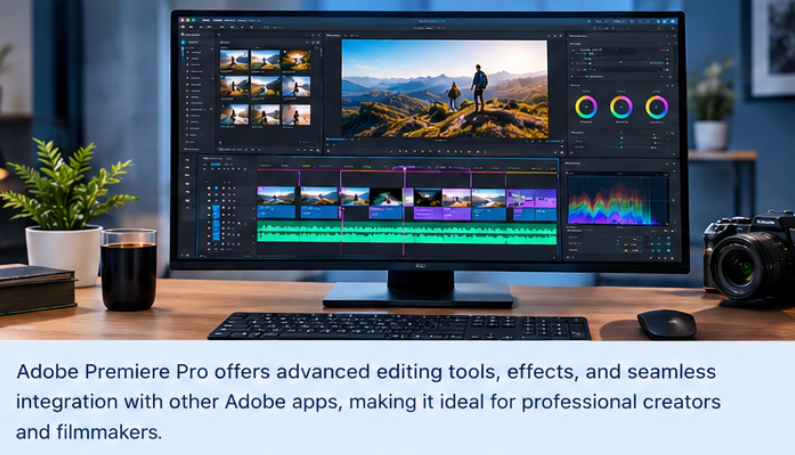
It supports conventional timeline editing, effects, titles, audio tools, color workflows, and increasingly AI-assisted features. Adobe’s current feature set includes AI-based Object Mask, tools for generating video and sound effects from prompts, and audio features such as Enhance Speech.
Premiere can make sense for creators who want a flexible professional workflow and need a large ecosystem of creative tools.
Consider it if you need:
- Professional timeline editing
- Advanced effects
- Detailed audio controls
- Complex projects
- Extensive creative integrations
- AI-assisted editing features
One important consideration is that professional software can take longer to learn than a simplified editor.
DaVinci Resolve
DaVinci Resolve combines editing, color correction, visual effects, motion graphics, and audio post-production in one application. Blackmagic Design currently offers DaVinci Resolve 21, alongside a paid Studio version.

Its major advantage is the way different stages of post-production are integrated. The application includes dedicated Cut, Edit, Fusion, Color, Fairlight, and Deliver workflows.
The free version also supports substantial editing capabilities, while Studio adds additional effects, AI tools, noise reduction, and other advanced functions.
Consider DaVinci Resolve if you want:
- A powerful free editing option
- Advanced color grading
- Visual effects
- Professional audio tools
- Long-form video editing
- A complete post-production environment
Its extensive feature set can require more time to learn, particularly if you are new to professional editing.
Final Cut Pro
Final Cut Pro is Apple’s professional video editor for Mac and iPad.
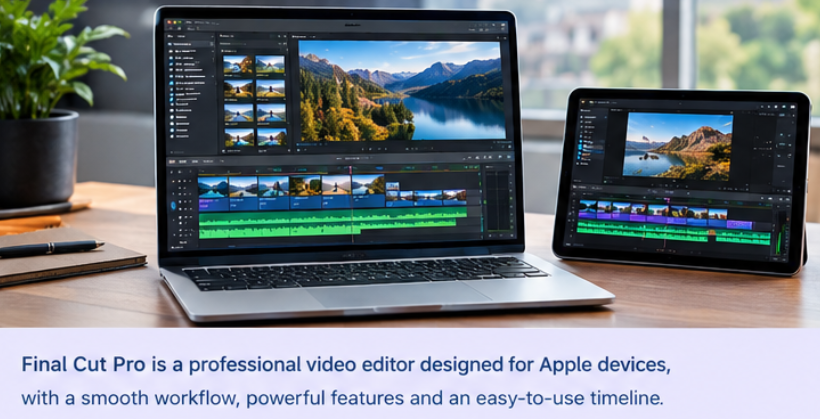
It uses Apple’s Magnetic Timeline and includes tools for editing, captions, color grading, audio, effects, object tracking, and other intelligent features. Apple also highlights automatic captions, Magnetic Mask, transcript search, visual search, and automatic reframing among its current capabilities.
Final Cut Pro is particularly relevant for people already working within the Apple ecosystem.
Consider it if you use:
- Mac
- iPad
- Apple silicon hardware
- iPhone footage
- Apple’s creative workflow
Apple states that Final Cut Pro for Mac requires macOS 15.6 or later and at least 8GB of memory, with 16GB recommended; some features require Apple silicon.
CapCut
CapCut is widely oriented toward fast content creation, social media, and creator workflows.
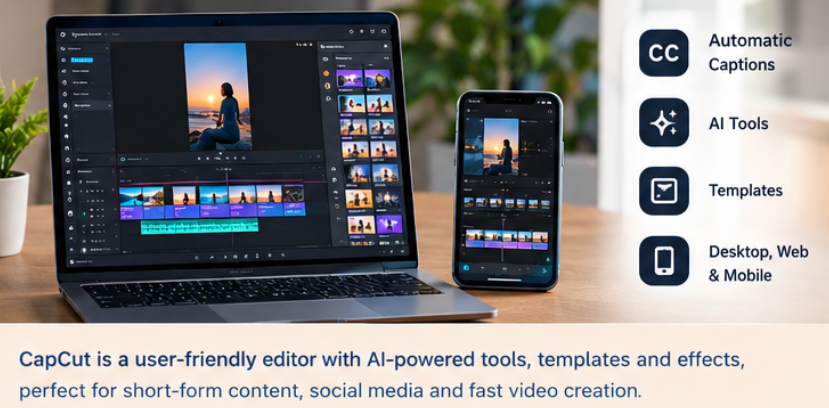
Its desktop editor includes features such as Auto Captions, Auto Reframe, text-to-speech, templates, keyframes, color grading, scene detection, and AI-assisted tools. CapCut also promotes features for automatically removing filler words and generating videos from scripts.
Consider CapCut if you primarily create:
- TikTok videos
- Instagram Reels
- YouTube Shorts
- Quick promotional videos
- Short-form social content
- Caption-heavy videos
Its automated tools can speed up simple projects, although users working on highly complex professional productions may need a more comprehensive post-production environment.
Quick Comparison of Popular Editing Software
| Software | Best suited to | Major strengths | Learning curve |
|---|---|---|---|
| Adobe Premiere Pro | Professional and advanced editing | Timeline editing, effects, audio, AI tools | Moderate to advanced |
| DaVinci Resolve | Professional editing and color work | Editing, color, VFX, audio in one application | Moderate to advanced |
| Final Cut Pro | Mac and iPad users | Fast workflow, Apple integration, intelligent tools | Moderate |
| CapCut | Social and short-form content | Templates, captions, AI tools, fast workflow | Beginner-friendly |
The comparison is a practical description of the software’s capabilities rather than a ranking. Your choice should depend on your hardware, project type, budget, and preferred workflow.
What Features Matter Most in Editing Software?
Color Correction and Color Grading
Color correction fixes technical problems such as exposure and white balance.
If color is important to your work, look for tools such as:
- Color wheels
- Curves
- LUT support
- Selective color controls
- Masking
- Tracking
- HDR tools
DaVinci Resolve has a particularly extensive dedicated Color workspace with HDR controls, curves, qualifiers, tracking, and node-based workflows.
Captions and Transcription
Captions have become an important part of online video.
Automatic transcription can save time when producing interviews, educational videos, podcasts, and social media clips. However, automatically generated captions should still be reviewed because speech recognition can make mistakes with names, technical terms, accents, and background noise.
AI-Assisted Editing
AI is increasingly being integrated into editing software.
Current examples include:
- Object detection
- Automatic masking
- Speech enhancement
- Transcription
- Smart search
- Automatic reframing
- Filler-word removal
- Generative video or audio features
These tools can reduce repetitive work, but they do not replace editorial judgment. A creator still needs to decide what footage supports the story, what should be removed, and how the final video should feel.
Free vs. Paid Editing Software
Free software can be enough for many creators.
A free editor may provide trimming, transitions, titles, audio editing, color adjustments, and high-quality exports without requiring a subscription.
Paid software can provide additional capabilities, integrations, technical support, advanced effects, premium assets, or professional workflows.
DaVinci Resolve is an example of software with both a free version and a paid Studio edition, while other professional applications use subscription or purchase models that can change over time.
Before paying, check the current pricing and feature differences on the developer’s official website.
Best Editing Software for Different Types of Users
Instead of asking which application is universally best, start by considering the type of project you want to create.
Beginners will usually benefit from a simple interface, ready-made templates, automatic captions, and straightforward export options.
YouTube creators should prioritize a flexible timeline, reliable audio editing, color correction, caption tools, and efficient export workflows.
Social media creators may find fast editing tools, vertical-video support, templates, captions, and automated features especially useful.
Tips for Getting Better Results From Any Video Editor
Good editing is not only about having expensive software.
Start by organizing your footage before building the final timeline. Rename important files, create folders or bins, and separate video, music, voice recordings, graphics, and other assets.
Next, create a rough cut before spending significant time on effects. A strong story and clean pacing are usually more important than adding large numbers of transitions.
Pay close attention to audio. Viewers may tolerate a simple visual style, but distracting background noise or inconsistent dialogue levels can make a video difficult to watch.
Finally, export according to the platform where the video will be published. A YouTube video, Instagram Reel, presentation, and broadcast production may have different technical requirements.
Is Expensive Editing Software Always Better?
No. Price and complexity do not automatically determine whether an editor is appropriate.
A beginner making short social videos may get more value from a simple editor than from a sophisticated professional application. Conversely, a filmmaker working with multiple cameras, advanced color grading, and complex audio may quickly outgrow a basic program.
The practical goal is to choose software that gives you the controls you need without adding unnecessary complexity to your workflow.
Frequently Asked Questions
What is the best editing software for beginners?
A beginner should generally look for software with an intuitive interface, simple timeline controls, templates, automatic captions, and straightforward export options. CapCut is one example of an editor emphasizing accessible tools and automated features, while more advanced applications can be learned gradually as your needs grow.
Is DaVinci Resolve really free?
DaVinci Resolve has a free version, while DaVinci Resolve Studio is a paid edition with additional features. Blackmagic Design currently lists both versions on its official product page.
Is Premiere Pro good for professional video editing?
Yes. Adobe Premiere is designed as a professional nonlinear video editor and provides tools for timeline editing, effects, audio, titles, color workflows, and AI-assisted features.
Is Final Cut Pro only for Mac?
Final Cut Pro is designed for Apple’s ecosystem and is available for Mac and iPad. Apple’s current requirements specify macOS for the Mac version and iPadOS-compatible iPad hardware for the iPad version.
Which editing software is good for YouTube videos?
The appropriate choice depends on the creator’s experience and production requirements. Premiere Pro and DaVinci Resolve provide extensive professional tools, while CapCut can be useful for creators who prioritize fast social-style editing and automated features.
Do I need expensive software to make good videos?
No. Editing skill, storytelling, good footage, clear audio, pacing, and thoughtful visual choices are often more important than the price of the application. Free software can be sufficient for many projects.
Read More: Comparing Best AI Image Generation Tools
Final Thoughts
The best editing software is ultimately the one that fits your projects, computer, experience level, and workflow.
For professional production, applications such as Adobe Premiere Pro and DaVinci Resolve provide extensive control. Final Cut Pro is designed around Apple’s Mac and iPad ecosystem, while CapCut emphasizes accessible, fast, and AI-assisted content creation.
Rather than choosing software because it has the longest feature list, identify what you actually need to edit. If you mainly produce short social videos, prioritize speed and captions. If you create films or detailed YouTube productions, look more closely at timeline management, color, audio, and export capabilities.
A good editor should make your creative process easier—not become the project itself.