Finding the right free CAD software can make a big difference when you want to create technical drawings, design mechanical parts, or build accurate 3D models without paying for an expensive subscription. Fortunately, several CAD programs now offer powerful design tools at no cost.
However, not every free CAD application works in the same way. Some are designed for 2D drafting, while others focus on 3D modeling, engineering, product design, or 3D printing. A few also provide free plans with restrictions on commercial use or document privacy.
In this guide, we compare 10 free CAD software options in 2026, explain their main features, and help you choose the right program for your needs.
What Is CAD Software?
CAD stands for Computer-Aided Design. CAD software allows users to create, edit, and analyze digital technical drawings and models.
Engineers, architects, product designers, manufacturers, and students use these applications to develop accurate designs before producing physical objects or constructing buildings.
CAD software is generally divided into two main categories:
- 2D CAD: Used to create flat technical drawings, floor plans, layouts, and engineering diagrams.
- 3D CAD: Used to develop three-dimensional models of mechanical parts, products, buildings, and other objects.
Some applications support both 2D and 3D workflows, while others specialize in one particular area.
Best Free CAD Software in 2026
Here are 10 CAD applications worth considering if you want to design without immediately purchasing a professional software subscription.
1. FreeCAD – Best Overall Free CAD Software
FreeCAD is one of the strongest options for users who need a free application for technical and mechanical design. It is an open-source parametric 3D modeler that allows users to create accurate objects and modify designs through editable parameters.
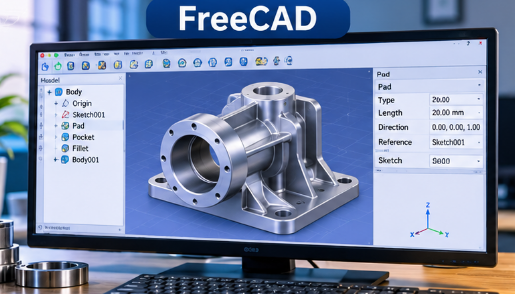
Unlike basic modeling applications, FreeCAD keeps a history of design operations. This makes it easier to adjust dimensions and change earlier design decisions without rebuilding an entire model.
Key Features:
- Parametric 3D modeling
- 2D sketching and constraints
- Mechanical part design
- Technical drawings
- Finite element analysis tools
- Support for 3D printing and manufacturing workflows
Pros:
- Free and open source
- Suitable for engineering projects
- Supports precise measurements
- Extensible through additional workbenches
Cons:
- Beginners may need time to understand the interface
- Advanced workflows can be complicated
- Some tasks require additional setup
Best For: Engineers, students, product designers, and hobbyists who need accurate 3D CAD designs.
2. LibreCAD – Best Free 2D CAD Software
LibreCAD is a free, open-source application designed specifically for 2D technical drafting. It is useful for creating floor plans, mechanical drawings, diagrams, and other precise layouts.
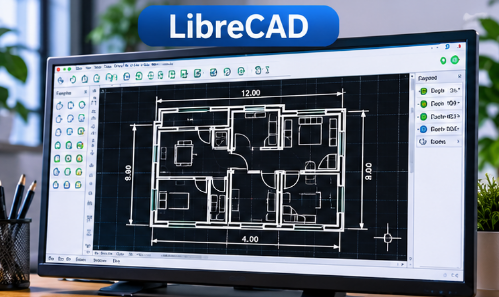
The application provides familiar drafting tools without requiring an expensive subscription. Its relatively lightweight design also makes it a practical choice for users who do not need advanced 3D modeling.
Key Features:
- 2D technical drawing tools
- Layers and blocks
- Dimensioning tools
- DXF file support
- Multiple measurement units
- Windows, macOS, and Linux support
Pros:
- Completely free and open source
- No subscription fees
- Lightweight application
- Available on multiple operating systems
Cons:
- Does not provide full 3D modeling
- Interface may take some time to learn
- Not intended for advanced mechanical 3D workflows
Best For: Students, architects, and professionals who primarily need free 2D drafting software.
3. OpenSCAD – Best for Code-Based CAD Design
OpenSCAD takes a different approach to computer-aided design. Instead of building every object through traditional drawing tools, users create models by writing scripts.
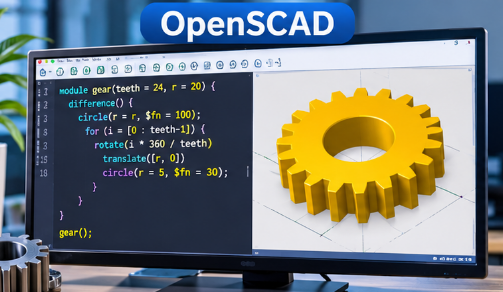
This makes it particularly useful for people who prefer programming and want precise control over dimensions and object geometry.
You can create complex shapes by combining basic geometric objects and applying mathematical operations.
Key Features:
- Script-based 3D modeling
- Parametric design
- Constructive solid geometry
- Customizable object dimensions
- Reusable design scripts
- 3D model export
Pros:
- Free and open source
- Excellent for repeatable designs
- Precise control over geometry
- Useful for engineering and 3D printing projects
Cons:
- Requires basic programming knowledge
- Not as visual as traditional CAD applications
- Beginners may find scripting difficult
Best For: Programmers, engineers, and makers who want to create precise models using code.
4. Tinkercad – Best Free CAD Software for Beginners
Tinkercad is a browser-based design platform that makes 3D modeling easier for people with little or no previous experience.
Its simple interface allows users to combine basic shapes to create objects. You can move, resize, rotate, and group different elements to build a complete design.
It is especially useful for educational projects and basic 3D printing designs.
Key Features:
- Browser-based 3D design
- Simple shape combination
- Beginner-friendly interface
- Basic 3D printing workflows
- Educational tools
- No traditional desktop installation required
Pros:
- Easy to understand
- Suitable for beginners and students
- Accessible through a web browser
- Useful for simple projects
Cons:
- Limited advanced CAD features
- Not suitable for complex engineering projects
- Requires an internet connection
Best For: Students, teachers, hobbyists, and beginners learning basic 3D design.
5. Onshape Free – Best Browser-Based CAD Software
Onshape is a cloud-based CAD platform that allows users to create and edit 3D designs through a web browser.
Its collaborative features make it useful for people who want to work on designs with other team members. Users can access their projects without installing a traditional desktop CAD application.
However, its free plan has an important restriction: documents created under the free plan are publicly accessible, and the plan is intended for non-commercial use. Check the current licensing terms before choosing it for professional projects.
Key Features:
- Browser-based 3D CAD
- Parametric modeling
- Assembly design
- Real-time collaboration
- Version history
- Cloud-based project access
Pros:
- No traditional installation required
- Useful collaboration tools
- Professional-style CAD workflow
- Accessible from different devices
Cons:
- Free plan documents are public
- Free plan is not intended for commercial use
- Requires a reliable internet connection
Best For: Students, hobbyists, and teams working on non-commercial design projects.
6. Autodesk Fusion for Personal Use – Best for Hobby Projects
Autodesk Fusion combines CAD, CAM, and other product development tools in one application. It is widely used for mechanical design, product development, and manufacturing-related workflows.
Autodesk offers a limited personal-use version for qualifying hobbyists. It is not the same as the full commercial subscription, and certain advanced features are restricted.
Before using it, check Autodesk’s current eligibility requirements and usage limitations.
Key Features:
- 3D parametric modeling
- Product design tools
- Basic manufacturing workflows
- 3D visualization
- Assembly design
- Cloud-connected projects
Pros:
- Professional-style design environment
- Useful for hobby projects
- Combines multiple design workflows
- Suitable for learning product development
Cons:
- Personal-use eligibility restrictions
- Some features are limited
- Requires an internet connection for certain workflows
Best For: Hobbyists, makers, and individuals learning mechanical and product design.
7. SolveSpace – Best Lightweight Parametric CAD Software
SolveSpace is a free, open-source parametric CAD application that focuses on constraint-based modeling.
It allows users to create 2D sketches and develop 3D objects using dimensions and geometric relationships. This makes it useful for people who need a relatively lightweight application for mechanical design.
Key Features:
- 2D sketching
- 3D modeling
- Parametric constraints
- Mechanical assemblies
- Export options
- Constraint-based design
Pros:
- Free and open source
- Lightweight application
- Useful for mechanical parts
- Supports both 2D and 3D workflows
Cons:
- Smaller feature set than larger CAD platforms
- Interface may feel unfamiliar
- Not designed for every professional workflow
Best For: Students, engineers, and hobbyists who want straightforward parametric CAD tools.
8. QCAD Community Edition – Best for Technical 2D Drawings
QCAD is a computer-aided drafting application focused on two-dimensional technical drawings.
Its Community Edition is open source and provides useful tools for creating mechanical plans, architectural drawings, and other technical layouts.
It is important to distinguish the free Community Edition from QCAD Professional, which offers additional features and capabilities.
Key Features:
- 2D technical drafting
- Layers and blocks
- Dimensioning tools
- Drawing modification tools
- Multiple measurement units
- Cross-platform support
Pros:
- Free Community Edition
- Useful drafting tools
- Suitable for technical layouts
- Available on Windows, macOS, and Linux
Cons:
- Advanced features are reserved for paid editions
- Focuses mainly on 2D drafting
- Users must understand edition differences
Best For: Users who need a straightforward 2D drafting application.
9. BRL-CAD – Best for Advanced Solid Modeling
BRL-CAD is an open-source solid modeling system with a long history in technical design and engineering-related applications.
It provides tools for creating and analyzing solid geometry. Its capabilities make it more suitable for technical users than people who simply want an easy application for basic drawings.
Key Features:
- Constructive solid geometry
- 3D solid modeling
- Geometry analysis
- Ray tracing
- Technical modeling tools
- Open-source development
Pros:
- Free and open source
- Powerful solid modeling capabilities
- Suitable for specialized technical work
- Extensive modeling functionality
Cons:
- Steeper learning curve
- Interface may feel complex
- Not the easiest option for beginners
Best For: Advanced users, researchers, and professionals interested in solid geometry.
10. Blender – Best Free Alternative for Creative 3D Design
Blender is primarily a 3D creation application rather than a traditional CAD program. However, it deserves consideration because many users searching for free CAD software also want to create 3D objects and visual designs.
It includes modeling, sculpting, animation, rendering, and other creative tools. Its flexibility makes it particularly useful for artistic projects and visual presentations.
However, it is not a direct replacement for parametric CAD software when precise engineering dimensions and technical drawings are required.
Key Features:
- 3D modeling and sculpting
- Animation tools
- Material creation
- Realistic rendering
- Visual effects
- Python scripting
Pros:
- Completely free and open source
- Powerful creative tools
- Large learning community
- Available on major desktop operating systems
Cons:
- Not designed primarily for engineering CAD
- Beginners may find the interface complicated
- Technical workflows may require additional tools
Best For: Artists, designers, game developers, and users interested in creative 3D modeling.
Comparison of the Best Free CAD Software
Choosing between different applications becomes easier when you compare their primary strengths.
| Software | Main Purpose | Free Version |
|---|---|---|
| FreeCAD | Parametric 3D CAD | Yes |
| LibreCAD | 2D drafting | Yes |
| OpenSCAD | Script-based 3D CAD | Yes |
| Tinkercad | Beginner 3D design | Yes |
| Onshape | Cloud-based CAD | Yes, with restrictions |
| Autodesk Fusion | Product and mechanical design | Limited personal use |
| SolveSpace | Parametric 2D and 3D CAD | Yes |
| QCAD | 2D technical drafting | Community Edition |
| BRL-CAD | Solid modeling | Yes |
| Blender | Creative 3D modeling | Yes |
Always check the official licensing and pricing pages before using a free edition for commercial work.
How to Choose the Right Free CAD Software
Not every CAD application is suitable for every project. Before selecting one, consider the following factors.
1. Understand Your Design Requirements
Start by identifying what you want to create. If you need technical mechanical parts, FreeCAD may be a better choice. For simple 2D drawings, LibreCAD is worth considering.
For creative 3D projects, Blender may be more suitable.
2. Consider Your Experience Level
Beginners should look for applications with simple interfaces and useful learning resources.
Tinkercad is a practical starting point, while FreeCAD and OpenSCAD offer more advanced tools that may require additional practice.
3. Check Free Plan Restrictions
Some applications are completely free and open source. Others provide limited free plans with restrictions on commercial use, document privacy, or available features.
Read the licensing conditions before using a program for business projects.
4. Review Computer Requirements
CAD applications can require considerable system resources when working with complex models.
Check the minimum hardware requirements, operating system compatibility, available memory, and graphics capabilities before installing a program.
5. Check File Compatibility
File compatibility matters when sharing designs with clients, colleagues, or manufacturing services.
Look for the file formats supported by your chosen application, especially if you need to exchange technical drawings or prepare models for 3D printing.
Can You Use Free CAD Software for Professional Projects?
Yes, several free CAD applications can be used for serious technical and professional work.
For example, FreeCAD provides parametric modeling and engineering-related tools, while LibreCAD is useful for technical 2D drafting.
However, professional suitability depends on the project requirements, software capabilities, file compatibility, and licensing conditions.
A free application may be enough for an independent designer or small business, while larger engineering teams may require specialized commercial tools and support.
Frequently Asked Questions
What is the best free CAD software in 2026?
FreeCAD is one of the best overall choices for free parametric 3D CAD. It offers engineering-focused modeling tools without requiring a paid subscription.
Which free CAD software is easiest for beginners?
Tinkercad is one of the easiest options for beginners because it uses a simple browser-based interface and basic shape-building tools.
Is FreeCAD completely free?
Yes. FreeCAD is an open-source application released under the LGPL-2.0-or-later license. Users can access its core design tools without purchasing a subscription.
Is there free CAD software for 2D drawings?
Yes. LibreCAD is a popular free and open-source option for creating 2D technical drawings and layouts.
Can I use free CAD software for 3D printing?
Yes. FreeCAD, OpenSCAD, Tinkercad, and other applications can help users create models for 3D printing. Always check dimensions, geometry, and export compatibility before printing.
Is Blender considered CAD software?
Blender is primarily a 3D creation tool rather than traditional CAD software. It is excellent for creative modeling and visualization but does not replace engineering-focused parametric CAD applications.
Can I use free CAD software for commercial projects?
It depends on the application’s license and free-plan conditions. Open-source programs such as FreeCAD and LibreCAD have licenses that permit commercial use, subject to their terms. Some commercial free plans, such as Onshape Free, have non-commercial restrictions.
Final Thoughts
The best free CAD software depends on what you want to design and how much control you need over your projects.
FreeCAD is an excellent starting point for parametric 3D design and engineering. LibreCAD is a practical choice for 2D drafting, while OpenSCAD is useful for code-based modeling. Beginners can explore Tinkercad, and users interested in creative 3D projects may prefer Blender.
Before choosing a program, compare its features, learning curve, supported file formats, and licensing conditions.
You do not necessarily need an expensive CAD subscription to get started. With the right free application, you can learn technical design, develop useful skills, and create projects that match your goals.