Choosing from the best laptops for video editing can be difficult because video editing puts heavy demands on the processor, graphics card, RAM, storage, and display. The right laptop depends on the type of videos you edit, the software you use, and how demanding your projects are, especially when working with 4K footage, color grading, effects, and multiple video tracks.
The good news is that you do not always need the most expensive laptop available. In this guide, we will explain what to look for when choosing a video editing laptop and how to find the right balance between performance, features, and price in 2026.
What Should You Look for in a Video Editing Laptop?
The best laptops for video editing need more than a fast processor. Video editing involves several hardware components working together, and a weakness in one area can affect the overall editing experience.
The most important specifications to consider are:
- CPU performance
- GPU performance
- RAM
- SSD storage
- Display quality
- Cooling
- Battery life
- Port selection
For most users, the best approach is to choose a balanced laptop instead of spending most of the budget on just one component.
CPU
The processor handles many important parts of video editing, including timeline operations, encoding, decoding, and other background tasks.
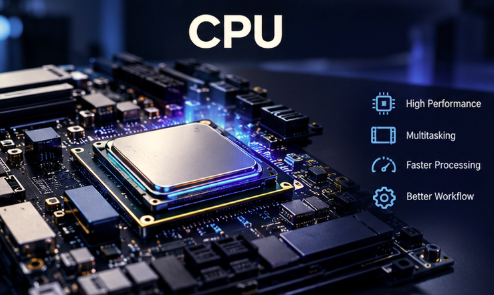
For basic 1080p editing, a modern mid-range processor can be enough. However, professional creators working with complex 4K projects, multicamera footage, or heavy effects should consider a higher-performance CPU.
Modern Intel Core Ultra, AMD Ryzen, and Apple silicon processors can all provide strong performance for video editing when paired with the right supporting hardware.
A faster CPU can also make a difference when exporting projects, rendering effects, and working with multiple applications at the same time.
GPU
The graphics processor is another important component for modern video editing.
Many editing applications use GPU acceleration for effects, color processing, scaling, playback, rendering, and other demanding tasks.

A stronger GPU can be especially useful when working with:
- 4K footage
- Color grading
- Motion graphics
- Visual effects
- Multiple video layers
- High-resolution timelines
Windows laptops with dedicated NVIDIA or AMD graphics can provide strong GPU performance, while modern Apple silicon laptops use an integrated architecture designed for efficient media workloads.
If video editing is your primary use, do not choose a laptop based only on CPU specifications. The GPU should also match the type of projects you plan to create.
How Much RAM Do You Need for Video Editing?
RAM affects how comfortably a laptop can handle large projects, complex timelines, and multiple applications.
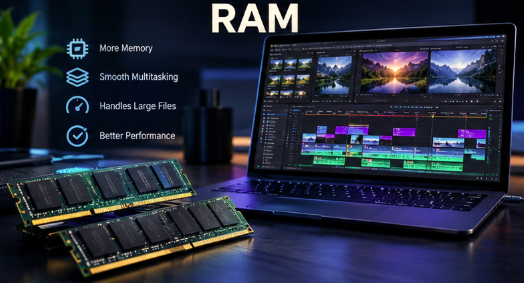
As a general guide:
| Editing Workload | Recommended RAM |
|---|---|
| Basic 1080p editing | 16GB |
| Advanced 1080p editing | 16GB–32GB |
| 4K video editing | 32GB |
| Heavy 4K editing and effects | 32GB–64GB+ |
For a new laptop, 16GB is a reasonable starting point for basic editing. However, 32GB is a better choice if you regularly work with 4K footage or demanding editing applications.
Editors who use applications such as Premiere Pro, After Effects, Photoshop, and other creative tools simultaneously may benefit from 64GB or more.
How Much Storage Do Video Editors Need?
Video files can consume storage very quickly.
A 256GB SSD might look sufficient when you first purchase a laptop, but operating system files, applications, project files, cache files, previews, and source footage can quickly reduce the available space.
For most video editors, a 1TB SSD is a much more practical starting point.
If you regularly work with large 4K projects, you may also want additional external storage for video footage, project backups, and completed projects.
Fast SSD storage can also improve the overall editing experience by reducing loading times and making large project files easier to manage.
Is Display Quality Important for Video Editing?
Yes. Display quality is an important consideration for video editors.
A powerful laptop with a poor display can make it harder to judge colors, shadows, highlights, and fine details accurately.
When choosing a laptop for video editing, look for:
- Good color accuracy
- High brightness
- Strong contrast
- Full HD resolution or better
- Wide color coverage
- Good viewing angles
Editors who regularly work with color grading may prefer a high-quality OLED or Mini-LED display.
However, display technology should not be considered separately from the rest of the hardware. A beautiful display cannot compensate for insufficient processing power or storage.
Best Laptop Specifications for Different Editors
Different editors have different requirements. A person creating short YouTube videos does not need the same hardware as someone editing professional 4K footage.
For YouTube and 1080p Video Editing
If you mainly create YouTube videos, tutorials, social media content, or simple promotional videos, you can save money by choosing a laptop with:
- A modern mid-range processor
- 16GB RAM
- 512GB or 1TB SSD
- Integrated or entry-level dedicated graphics
- A good Full HD or better display
You do not necessarily need a high-end workstation for basic 1080p projects.
For 4K Video Editing
When comparing the best laptops for video editing, 4K editing requires more processing power and memory.
A good 4K editing configuration should include:
- A high-performance modern CPU
- 32GB RAM
- 1TB SSD or more
- A capable GPU or modern Apple silicon
- A high-quality display
The more complex your projects become, the more important it is to have additional RAM, GPU power, and storage.
For Professional Video Editors
Professional editors working with RAW footage, multicamera projects, advanced effects, motion graphics, and high-resolution timelines should consider higher-end hardware.
A professional configuration may include:
- 32GB–64GB+ RAM
- A powerful modern CPU
- A strong dedicated GPU or high-end Apple silicon
- 1TB–2TB+ SSD storage
- A high-quality color-accurate display
- Strong cooling
- A wide selection of ports
The extra performance can be particularly useful when rendering or exporting projects for long periods.
MacBook vs Windows Laptop for Video Editing
Both MacBook and Windows laptops can be excellent choices for video editing. The better option depends on your software, workflow, budget, and performance requirements.
MacBook
Modern MacBook models with Apple silicon are attractive to many creators because of their combination of performance, battery efficiency, portability, and display quality.
They can be particularly appealing to users who work with Final Cut Pro or other software optimized for macOS.
MacBooks can also be a good option for editors who frequently work away from a desk and want strong performance without carrying a heavy machine.
Windows Laptop
Windows offers a much wider range of hardware configurations.
You can choose laptops with:
- NVIDIA graphics
- AMD graphics
- Intel processors
- AMD processors
- OLED displays
- Large cooling systems
- High-capacity storage
- Upgradeable components on some models
Windows can therefore be a practical choice for editors who want dedicated GPU performance, gaming capability, or a wider selection of hardware.
Premiere Pro vs DaVinci Resolve: What Hardware Do You Need?
The editing software you use should influence your laptop choice.
Adobe Premiere Pro
For editors using Adobe Premiere Pro, checking the official Adobe Premiere Pro system requirements can help ensure that a laptop meets the recommended hardware specifications.
If you regularly work with 4K footage, complex timelines, effects, and multiple video layers, a laptop with 32GB RAM and a capable GPU can provide more room for demanding projects.
DaVinci Resolve
DaVinci Resolve can also benefit significantly from powerful graphics hardware, particularly for color grading, effects, and other demanding workloads.
If DaVinci Resolve is your primary editing application, do not focus only on the processor. A balanced laptop with strong graphics performance, sufficient RAM, fast storage, and good cooling can be a better choice.
Do You Need a Gaming Laptop for Video Editing?
Not necessarily.
Gaming laptops often include powerful processors and dedicated graphics, which can make them capable video editing machines.
However, gaming laptops can also be heavier, louder, and less battery-efficient than creator-focused laptops.
A gaming laptop can make sense if you want one computer for both gaming and video editing.
If video editing is your main priority, also consider:
- Display color accuracy
- Cooling
- Port selection
- SSD capacity
- Battery life
- Weight
Performance is important, but it is not the only factor.
How Much Should You Spend on a Video Editing Laptop?
There is no single price range that works for every editor.
Entry-Level Editing
For basic 1080p projects, a reasonably priced laptop with a modern processor, 16GB RAM, and fast SSD storage can be sufficient.
Mid-Range Editing
For regular 4K editing, look for 32GB RAM, a strong processor, fast SSD storage, and capable graphics.
Professional Editing
For demanding professional workflows, spending more can make sense if the additional hardware provides meaningful improvements in GPU performance, RAM, storage, display quality, and sustained performance.
The key is to spend money on the components that match your workload rather than simply buying the most expensive laptop available.
Common Mistakes When Buying a Video Editing Laptop
Buying Too Little RAM
A laptop with 8GB RAM may be able to run some editing applications, but it is not a good long-term choice for serious video editing.
For a new machine, 16GB is a more practical starting point, while 32GB is preferable for demanding 4K projects.
Ignoring the GPU
A powerful CPU cannot compensate for every GPU limitation.
Modern editing applications can use GPU acceleration for many demanding tasks, so graphics performance should be considered when choosing a laptop for professional editing.
Choosing a Small SSD
Video projects can quickly consume hundreds of gigabytes.

A 1TB SSD gives you considerably more working space than a 256GB or 512GB drive, although serious editors may still need additional external storage.
Focusing Only on CPU Specifications
A video editing laptop should have balanced hardware.
CPU, GPU, RAM, storage, display, and cooling all contribute to the overall experience.
Ignoring Cooling
Video editing can keep a laptop under heavy load for extended periods.
A laptop with a strong cooling system can maintain performance more consistently during long rendering and export sessions.
What Is the Best RAM for Video Editing?
For most people buying a new editing laptop in 2026, 16GB is a practical starting point, while 32GB is a better target for serious 4K video editing.
Editors working with complex projects, heavy effects, multicamera footage, or multiple creative applications at the same time may benefit from 64GB or more.
What GPU Is Best for Video Editing?
There is no single GPU that is best for every video editor.
For Windows laptops, modern NVIDIA GeForce RTX graphics are popular for demanding creative workloads because many editing applications can take advantage of GPU acceleration and dedicated graphics memory.
The right GPU depends on your editing resolution, effects, software, and overall workload.
For Apple laptops, modern Apple silicon systems use a different architecture with integrated graphics and unified memory.
Read More: Free Graphic Design Software: Best Free Tools for Beginners and Designers
What Is the Best Laptop for 4K Video Editing?
The best laptop for 4K video editing should have a powerful modern processor, 32GB or more RAM, fast SSD storage, capable graphics hardware, and a high-quality display.
There is no single laptop that is perfect for every 4K editor.
Someone editing short YouTube videos has very different requirements from a filmmaker working with RAW footage, complex effects, and professional color grading.
Frequently Asked Questions
Can a laptop with 16GB RAM edit 4K video?
Yes. A 16GB laptop can handle some 4K editing workloads, especially lighter projects. However, 32GB provides more headroom for complex timelines, effects, multitasking, and higher-resolution workflows.
Is a dedicated GPU necessary for video editing?
Not always. Some modern processors and Apple silicon systems can handle video editing very well without a traditional discrete GPU. However, a dedicated GPU can be beneficial for demanding effects, color grading, rendering, and GPU-accelerated workflows.
Is 1TB SSD enough for video editing?
A 1TB SSD can be enough for many editors, but large 4K projects can consume storage quickly. A 1TB internal SSD combined with additional external storage is a practical setup for many creators.
Is Mac or Windows better for video editing?
Both platforms can be excellent for video editing. The better choice depends on your preferred software, required GPU performance, portability, budget, and existing workflow.
Can a gaming laptop be used for video editing?
Yes. Many gaming laptops have powerful processors and dedicated graphics that work well for video editing. The main trade-offs can include weight, fan noise, battery life, and display quality.
How much RAM do I need for Premiere Pro?
For basic editing, 16GB can be a reasonable starting point. For demanding 4K projects, 32GB or more provides additional headroom for complex timelines and multitasking.
What storage is best for video editing?
A fast SSD is preferable for video editing. A 1TB SSD is a practical starting point for many users, while professional editors may want 2TB or more combined with additional external storage.
Final Thoughts
Choosing among the best laptops for video editing ultimately comes down to your software, project resolution, workload, and budget.
For basic 1080p projects, a modern processor with 16GB RAM and fast SSD storage can be enough. For serious 4K editing, moving to 32GB RAM, stronger graphics, and larger high-speed storage is a safer choice.
Before buying, think about the software you use, the resolution you normally edit, how complex your projects are, and whether portability or maximum performance matters more to you.
Choosing a laptop based on your actual editing workflow will help you get the performance you need without paying for hardware you may never use.