Google Search has changed significantly with the introduction of AI-powered features. If you are wondering how to turn off AI mode on Google, you are not alone. Many users prefer traditional Google Search results without AI-powered features such as AI Mode and AI Overviews. The good news is that there are ways to avoid certain AI search experiences and return to more traditional web results.
That has created a common question: how to turn off AI mode on Google?
The answer depends on what you are seeing. If you are referring to the dedicated AI Mode experience, Google provides ways to avoid opening it, and Chrome also lets you hide the AI Mode option from the address bar. However, if you are talking about AI Overviews appearing in normal Google Search results, Google currently does not provide a general switch that permanently turns the feature off.
Fortunately, there are practical ways to get closer to the traditional Google Search experience.
This guide explains what Google AI Mode is, how it differs from AI Overviews, what you can turn off, and which alternatives can help you see regular web results.
What Is Google AI Mode?
Google AI Mode is an AI-powered search experience designed for more conversational and detailed searches.
Instead of simply returning a traditional list of links, AI Mode can generate an AI-powered response, allow follow-up questions, and explore different parts of a topic. Google explains that AI Mode can break a question into subtopics and search for information related to those areas.
For example, instead of searching several separate queries such as:
- Best places to visit in Japan
- Best time to visit Japan
- Japan travel costs
- Things to do in Tokyo
A user can ask a broader question and continue the conversation inside AI Mode.
This makes AI Mode different from a normal Google results page.
However, not everyone wants an AI-powered search experience. Some users prefer opening websites directly and comparing information themselves.
AI Mode vs. AI Overviews: What Is the Difference?
One of the biggest sources of confusion is that AI Mode and AI Overviews are not exactly the same feature.
AI Overviews
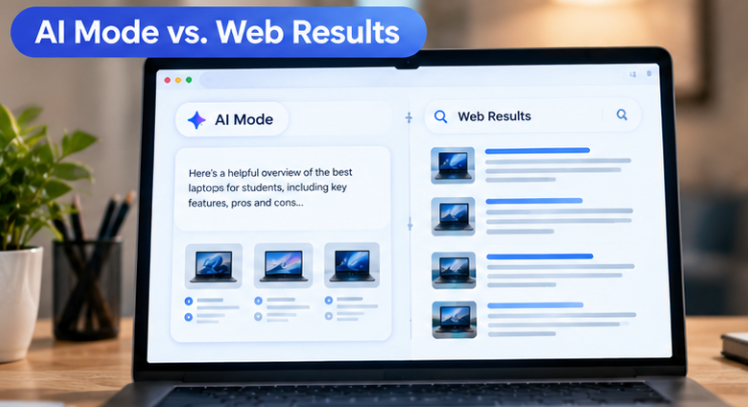
AI Overviews are AI-generated summaries that can appear within ordinary Google Search results when Google determines that an AI-generated explanation may be useful.
They can provide a short overview of a topic along with links to websites for additional information.
You do not necessarily have to enter a special AI search mode to encounter an AI Overview.
AI Mode
AI Mode is a dedicated AI search experience where users can ask questions, receive AI-generated responses, and continue with follow-up questions.
In other words, an AI Overview can appear as part of a normal search, while AI Mode is a separate, more conversational search experience.
Understanding this difference is important because the solution for avoiding one feature may not completely remove the other.
Can You Completely Turn Off AI Mode on Google?
If your goal is to permanently remove every AI-powered feature from Google Search, the answer is not currently straightforward.
Google’s official documentation explains that AI Overviews are a core part of Search and cannot simply be switched off like an ordinary preference. Instead, Google provides the Web filter, which shows traditional text-based web results without AI Overviews.
That means there is an important distinction:
You may be able to avoid certain AI experiences, but there is currently no universal Google Search switch that disables every AI feature for every user.
Google can also change the availability and interface of these features over time, so instructions that worked several months ago may no longer apply.
How to Avoid AI Overviews With the Web Filter
The easiest official method for getting traditional web results is to use Google’s Web filter.
Step 1: Open Google Search
Open Google Search in your browser or Google Search app.
Step 2: Perform Your Search
Enter the topic or question you want to search for.
For example:
best laptops for students
Press Enter or submit the search.
Step 3: Find the Web Filter
Look at the filters near the top of the results page.
Depending on your device and Google interface, you may see options such as Images, News, Videos, Shopping, or Web.
If Web is not immediately visible, it may appear under a More option.
Step 4: Select Web
Select Web.
Google’s Web filter is designed to display text-based website results rather than features such as AI Overviews.
This is currently one of the simplest ways to return to a more traditional search-results experience.
Why the Web Filter Is Useful
The Web filter can be particularly useful if you prefer:
- Direct website links
- Comparing several sources yourself
- Reading complete articles
- Avoiding AI-generated summaries
- Finding publisher content
- Traditional search results
- More control over which websites you read
It is important to understand that the Web filter is not necessarily the same as permanently turning AI off.
Instead, it changes the type of results displayed for that search.
How to Hide AI Mode in Google Chrome
There is another situation that can confuse users.
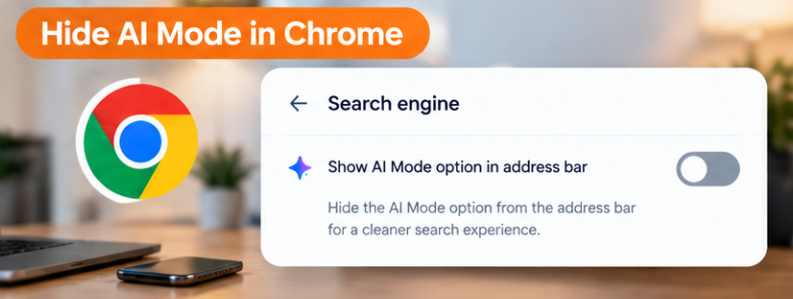
Google Chrome is adding AI Mode access directly into parts of the browser interface for eligible users. If you simply do not want the AI Mode button or shortcut visible in the Chrome address bar, Google provides a setting to hide it.
On supported versions of Chrome:
- Open Chrome on your computer.
- Look at the address bar.
- Right-click the address bar.
- Find the option related to Always show AI Mode.
- Turn that option off.
This hides the AI Mode access point from the address bar.
However, hiding the shortcut does not mean that every AI feature in Google Search has been disabled.
It is simply a way to remove the visible AI Mode shortcut from that part of Chrome.
How to Stop Accidentally Opening AI Mode
If you regularly prefer traditional search, one simple habit can help: use the normal Google Search box and choose Web when you want standard website results.
You do not need to use AI Mode just because the option is visible.
If Chrome displays AI Mode beside the search box or address bar, hiding the shortcut can also make the interface feel less cluttered.
What About Search Labs?
Search Labs can cause additional confusion because Google has used Labs to test experimental AI search features.
Google currently documents an AI Mode experiment in Search Labs for users who have opted into that experiment.
If you joined an experimental Search Labs feature, its settings can be different from the standard Google Search experience.
Therefore, if you remember manually enabling an AI experiment, it is worth checking Search Labs and reviewing the experiments associated with your Google account.
However, turning off an experimental feature should not be confused with permanently disabling all AI features in Google Search.
Google’s standard AI Overviews are a separate part of the Search experience.
Can You Turn Off AI Mode on Android?
The exact interface can vary depending on your Google app, browser version, account, country, language, and the features currently available to you.
If you are seeing a dedicated AI Mode button in Google Search, you can simply avoid selecting it and use the standard search interface.
For searches where an AI Overview appears, use the Web filter when it is available.
Google’s AI Mode documentation also notes that availability is being expanded gradually, so not every Android user will necessarily see exactly the same interface.
Can You Turn Off AI Mode on iPhone?
The same basic principle applies on iPhone.
Google’s Search interface can vary by account, app version, language, region, and feature rollout.
If you do not want to use AI Mode, continue using normal Google Search and avoid selecting the AI Mode option.
If an AI Overview appears in the results, look for the Web filter. Selecting Web provides traditional text-based website results without the AI Overview.
There is currently no general setting that guarantees the removal of every AI-generated Search feature from every Google account.
Does Turning Off Gemini Disable Google Search AI?
Not necessarily.
This is another common misunderstanding.
Google has several AI-powered products and features, including Gemini, AI Mode, AI Overviews, and AI-powered tools inside Chrome and other Google services.
Changing a Gemini-related setting does not automatically mean that all AI features inside Google Search are disabled.
For example, Google documents AI Mode as a Search experience and separately documents AI-powered features in Chrome.
Therefore, users should identify which AI feature they are actually seeing before changing settings.
What If AI Mode Keeps Appearing?
If AI Mode continues appearing after you have changed a setting, there may be several reasons.
Google changed the Search interface
Google frequently updates Search features and their placement.
A button that appeared in one location may later move somewhere else.
The feature is part of Google’s standard Search experience
Some AI features are integrated into Search rather than being optional experiments.
This is particularly relevant to AI Overviews.
Your device has a different interface
The Google Search app, Chrome, mobile browsers, and desktop browsers can show different controls.
The feature is being rolled out gradually
Google does not always release new Search features to every user at exactly the same time.
As a result, two people may see different Search interfaces even when they are using the same Google service.
A Simple Way to Get Traditional Google Results
If your main goal is not necessarily to disable every AI feature but simply to see normal websites, the Web filter is the most straightforward approach.

Think of it this way:
| What you want | What to try |
|---|---|
| Traditional website results | Use the Web filter |
| Avoid opening AI Mode | Don’t select AI Mode |
| Hide AI Mode in Chrome | Turn off “Always show AI Mode” |
| Stop an experimental AI feature | Review Search Labs |
| Remove every AI feature permanently | No universal switch currently available |
This distinction can save time because many online guides treat AI Mode and AI Overviews as if they were exactly the same thing.
Why Some People Prefer Traditional Search
AI-powered search can be useful, but traditional search still has advantages for people who want to investigate information themselves.
With normal web results, you can:
- Compare different publishers
- Read the complete context
- Check the date of an article
- Examine the original source
- Open several websites
- Decide which information is trustworthy
- Avoid relying on a single generated summary
This can be particularly important for medical, financial, legal, technical, academic, and other subjects where checking original sources matters.
Google itself warns that AI-generated responses can contain mistakes, so important information should still be verified.
How to Give Google Feedback About AI Search
If you dislike an AI-generated result or believe an AI response is inaccurate, Google provides feedback options within Search.
Feedback can help Google understand problems users encounter with AI-powered search features.
When possible, explain the specific problem instead of simply reporting that you dislike AI.
For example, you might report that:
- The answer misunderstood your question.
- The information appears outdated.
- A source was interpreted incorrectly.
- The response did not answer the actual query.
- The generated summary was confusing.
Feedback is different from turning the feature off, but it gives Google information about your experience.
Should You Use a Browser Extension to Remove Google AI?
Some third-party browser extensions claim to hide AI Overviews or other AI elements from Google Search.
These tools can sometimes modify what appears on a webpage, but they are not the same as an official Google setting.
Before installing one, consider:
- Who developed the extension?
- What permissions does it request?
- Is it actively maintained?
- Does it collect browsing information?
- Does it work with your current browser version?
- Are reviews and update history trustworthy?
For a simple solution, Google’s built-in Web filter is preferable because it does not require installing an additional extension.
The Bottom Line
If you searched for how to turn off AI mode on Google, the most important thing to know is that there is no single switch that universally removes every AI-powered feature from Google Search.
AI Mode and AI Overviews are separate experiences.
If you want traditional website results, use Google’s Web filter. If you are using Chrome and simply want to remove the AI Mode shortcut from the address bar, you can turn off the option to always show AI Mode.
Google Search continues to evolve, so the exact buttons and menus may change. When following any instructions, use the options currently displayed in your own Google account and browser.
Frequently Asked Questions
1. Can I permanently turn off Google AI Mode?
There is currently no universal setting that disables every AI-powered feature in Google Search. You can avoid the dedicated AI Mode experience and use the Web filter for traditional results.
2. How do I remove AI Overviews from Google Search?
Google does not currently provide a general permanent off switch for AI Overviews. Selecting the Web filter after a search displays text-based web results without AI Overviews.
3. Is AI Mode the same as AI Overview?
No. AI Mode is a dedicated conversational AI search experience, while AI Overviews are AI-generated summaries that can appear within regular Google Search results.
4. Can I hide the AI Mode button in Chrome?
Yes. On supported Chrome versions, you can right-click the address bar and turn off Always show AI Mode. This hides the shortcut but does not disable all Google AI features.
5. Does turning off Gemini remove AI from Google Search?
Not necessarily. Gemini and Google Search’s AI features are not one single setting. The specific AI feature needs to be managed separately.
6. Why does Google keep showing AI features even when I do not use them?
Some AI features, particularly AI Overviews, are integrated into Google Search rather than being optional features that can simply be switched off. The Web filter is the main built-in way to request traditional web results.
Read More: Best Editing Software: A Practical Guide to Choosing the Right Video Editor
Final Takeaway
For most users who want a classic Google experience, the easiest approach is simple: search normally, select the Web filter when available, and avoid the dedicated AI Mode interface.
If you are using Chrome and the AI Mode shortcut is distracting, you can also hide that shortcut from the address bar.
Because Google continues to change and expand its AI-powered Search features, it is worth checking Google’s current help documentation if a setting looks different on your device.