AI video creation has made it easier for beginners, content creators, students, and businesses to produce videos without expensive cameras or advanced editing skills. With the right tools, you can turn a written idea, an image, or a short script into a video for YouTube, social media, marketing, or education.
If you want to learn how to make AI videos, the process is simpler than it may seem. You need a clear idea, a suitable AI video generator, a well-written prompt, and a little editing to improve the final result.
This guide explains how AI video generation works, which tools you can explore, how to write better prompts, and how to create videos step by step.
What Is AI Video Generation?
AI video generation is the process of using artificial intelligence to create or modify video content from inputs such as text prompts, images, scripts, or existing footage.
For example, you could describe a peaceful forest at sunrise and use a text-to-video tool to generate a short moving scene. You could also upload a product image and animate it to create a promotional clip.
Most AI video workflows fall into three main categories:
- Text-to-video: Creates a video clip from a written description.
- Image-to-video: Animates an existing image using instructions about movement and camera motion.
- Video-to-video: Transforms or modifies existing footage with AI features.
The best approach depends on what you want to create. Text-to-video works well when you are starting with an idea, while image-to-video can be useful when you want more control over the appearance of a scene.
What Do You Need to Make AI Videos?
You do not need a professional camera or a powerful computer to get started with many online AI video tools. However, preparing a few things before generating a video can save time and improve your results.
A clear video idea: Decide whether you are making a YouTube video, a social media Reel, a product demonstration, or an educational clip.
An AI video generator: Choose a tool that supports the type of video you need, such as cinematic scenes, animated images, or videos featuring a virtual presenter.
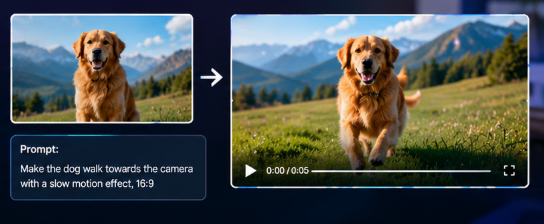
A script or prompt: Write down the main message and describe the visuals you want to see.
Editing software: An editor can help you arrange clips, add narration, correct timing, and include captions or background music.
A suitable video format: Landscape video with a 16:9 aspect ratio is commonly used for YouTube, while vertical 9:16 video is suitable for platforms such as TikTok and Instagram Reels.
You can start with a short clip and improve your workflow as you become more familiar with the tools.
Best AI Video Tools to Explore in 2026
Different AI video generators serve different purposes. Instead of choosing a tool simply because it is popular, consider the type of video you want to make.
1. Runway
Runway offers AI-powered video generation, including text-to-video and image-to-video workflows. It is worth exploring if you want to create cinematic scenes, experiment with camera movement, or generate visual clips from detailed prompts.
Best for: Creative video scenes and visual experimentation.
Website: https://runway.com/
2. Adobe Firefly
Adobe Firefly includes video-generation features that can create clips from text prompts and images. Its workflow can be useful for creators who want to generate visual material and incorporate it into a broader creative process.
Best for: Creative projects, image animation, and video production workflows.
Website: https://firefly.adobe.com/
3. Google Vids
Google Vids combines video creation and editing features with AI-assisted planning. Depending on your account and available features, it can help you develop a video outline, organize scenes, and prepare narration and media.
Best for: Presentations, workplace explainers, and structured video projects.
Website: https://vids.google.com/
4. Canva AI
Canva offers AI video-generation features alongside its video editor. You can generate short clips from text prompts and continue editing your content within the Canva workflow.
Best for: Beginners, social media content, and simple promotional videos.
Website: https://www.canva.com/
5. CapCut
CapCut provides video editing features and AI-assisted workflows, with availability varying by device, region, and version. It can be useful for combining clips, adding captions, adjusting timing, and preparing videos for social platforms.
Best for: Short-form videos and social media editing.
Website: https://www.capcut.com/
Tool features, pricing, generation limits, and regional availability can change. Check the official website before purchasing a subscription or planning a project around a particular feature. A free account does not necessarily include unlimited video generation.
How to Make AI Videos Step by Step
The easiest way to learn how to make AI videos is to create a short project first. You can follow the workflow below even if you have never used an AI video generator.
Step 1: Choose a Video Topic
Start with one clear idea instead of trying to create an entire long video at once.
For example, you could create:
- A 30-second educational video about space.
- A product showcase for an online store.
- A short travel scene featuring a mountain landscape.
- A YouTube Short explaining a technology concept.
- A promotional video for a small business.
Choose one main message and identify the audience. This makes it easier to write the script and decide what the visuals should communicate.
Step 2: Write a Short Script
A script gives your video a clear beginning, middle, and ending. For a short video, start with a hook, explain the main idea, and finish with a useful takeaway or call to action.
For example, a short video about saving energy might use this structure:
Opening: Show a home using unnecessary electricity.
Main section: Present three practical ways to reduce energy use.
Ending: Summarize the benefits and encourage viewers to try one change.
If the video includes narration, write the spoken words before generating the visuals. This helps you estimate the length and select appropriate scenes.
Step 3: Choose Text-to-Video or Image-to-Video
Open your selected AI video tool and decide how you want to generate the footage.
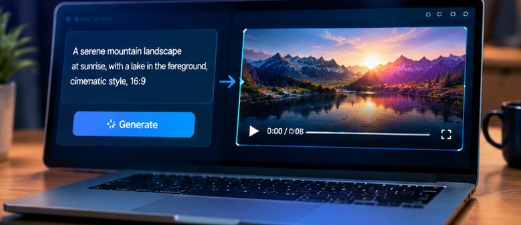
With text-to-video, enter a prompt describing the subject, action, setting, lighting, and camera movement. The tool creates a clip based on that description.
With image-to-video, upload an image you have permission to use and describe how it should move. For example, you might ask for a slow camera push toward a product while the background lights move gently.
If you struggle to get the right composition using text alone, creating a suitable image first and then animating it may provide more control.
Step 4: Write a Detailed AI Video Prompt
A vague prompt often produces results that are difficult to use. Describe what should happen in the scene instead of relying on general instructions such as “make a beautiful video.”
A useful prompt includes:
- Subject: What should appear in the video?
- Action: What should the subject do?
- Setting: Where does the scene take place?
- Camera movement: Should the camera pan, track, or move closer?
- Lighting and style: Should the result look natural, cinematic, bright, or dramatic?
- Duration and format: What length and aspect ratio does the project require, if supported?
Here is an example prompt:
“Create a cinematic 8-second video of a small sailboat moving slowly across a calm blue lake at sunrise. Gentle ripples move across the water, warm sunlight reflects on the surface, and distant mountains remain visible in the background. Use a slow forward camera movement, natural colors, realistic water motion, and a peaceful documentary style. Landscape composition, 16:9.”
You can adapt this structure to product videos, travel footage, educational clips, or other creative projects.
Step 5: Generate and Review the First Clip
Submit your prompt and wait for the tool to generate the video. Watch the entire result before deciding whether it is ready to use.
Check whether the subject looks consistent, the movement feels natural, and the scene matches your original idea. Look for distorted objects, unusual motion, flickering details, or visual elements that were not requested.
If the result is not good enough, change one or two details in the prompt and generate another version. Rewriting the entire prompt every time can make it harder to understand which change improved the output.
Step 6: Create Additional Scenes
Longer videos usually work better when divided into shorter scenes rather than generated as one continuous clip.
For example, a one-minute educational video could contain:
- An opening scene that introduces the topic.
- Two or three scenes that explain the main points.
- A closing scene that summarizes the message.
Generate each scene separately when the tool supports it. Keep the visual style, lighting, colors, and subject descriptions consistent so the finished video feels connected.
Step 7: Add Voiceover, Music, and Captions
Once you have the main footage, assemble the clips in a video editor.
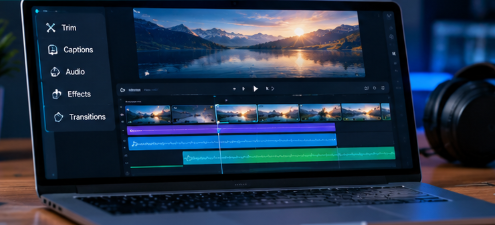
Add narration if the video needs an explanation. Use background music only when it supports the mood without making the speech difficult to hear. Captions can help viewers follow the content, especially when they watch without sound.
Check the spelling of on-screen text carefully. AI-generated visuals may contain distorted letters, so it is often better to add titles and captions in a video editor rather than relying on the generator to render exact text.
Use music, images, voices, and other assets only when you have the necessary rights or permissions.
Step 8: Export the Final Video
Before exporting, review the complete video from beginning to end. Remove unnecessary pauses, check audio levels, and make sure the ending does not cut off abruptly.
For a YouTube project, a 16:9 landscape format is a common choice. For vertical social media videos, use 9:16 when the platform and project require it.
Choose an appropriate resolution and frame rate supported by your editor and intended platform. Higher export settings are not automatically better if the original footage is low quality.
Finally, watch the exported file to confirm that the sound, captions, transitions, and video dimensions are correct.
How to Make AI Videos for Free
You can experiment with AI video creation without immediately buying a subscription. Start by checking whether your preferred tool offers a free account, trial, or limited generation credits.
A practical beginner workflow is:
- Write your video script using a writing assistant.
- Choose an AI video generator that offers access within your budget.
- Create one or two short clips rather than a full-length video.
- Use an editor with suitable free features to combine the clips.
- Add your own narration or properly licensed audio.
- Export the video using the available settings.
The main limitation is that free access may come with watermarks, usage limits, lower resolutions, or restrictions on commercial use. Read the current plan terms before using generated content in a business project.
You can also compare tools by the number of usable clips they produce, not just by the number of generations included in a plan.
How to Make AI Videos for YouTube
YouTube videos need more than attractive visuals. They should provide useful information, maintain a clear structure, and keep viewers interested.
Begin with a specific topic and write a script that answers the viewer’s question. Generate footage that supports each part of the explanation instead of adding unrelated scenes just to make the video look impressive.
For a faceless YouTube video, you can combine narration, AI-generated scenes, diagrams, screenshots, and other visuals that you have permission to use. Review every factual statement and correct errors before publishing.
If you plan to monetize AI-generated videos, focus on original value. Add your own explanation, research, examples, commentary, or editing decisions rather than publishing large numbers of repetitive videos with little meaningful contribution.
Also review YouTube’s current monetization and synthetic-content disclosure policies. Realistic altered or synthetic content may require disclosure in certain circumstances, and using AI does not automatically make every video eligible for monetization.
Common Mistakes to Avoid When Creating AI Videos
Using vague prompts
Prompts such as “make a cool video” do not provide enough direction. Describe the subject, movement, environment, and visual style more precisely.
Trying to generate a long video in one attempt
A long generation can be difficult to control. Short scenes make it easier to correct mistakes and maintain a consistent result.
Ignoring visual and factual errors
AI-generated footage may include unrealistic movement, distorted details, or misleading depictions. Review the output before publishing it, especially when the video explains scientific, historical, financial, or technical topics.
Forgetting sound and captions
Good visuals cannot compensate for unclear narration or distracting audio. Check sound levels, captions, and timing during the final edit.
Ignoring copyright and privacy
Do not assume that every generated asset, uploaded photograph, voice, or music track can be used commercially. Check permissions, tool terms, and applicable privacy requirements.
Expecting every tool to be free
Some services offer limited free access, while others require a subscription or paid credits for particular models and features. Compare the current terms before committing to a workflow.
Frequently Asked Questions
Can I make AI videos without editing skills?
Yes. Many AI video tools allow beginners to generate short clips from text prompts or images. Basic editing skills become helpful when you want to combine scenes, add narration, correct timing, or prepare a polished final video.
What is the easiest way to make an AI video?
Start with a simple idea, write a detailed prompt, generate a short clip, and review the result. If you need more control over the scene, create an image first and animate it with an image-to-video tool.
Can I make AI videos for free?
Some tools offer free access or limited credits, but features and restrictions vary. Check current pricing, watermarks, export quality, and commercial-use terms before choosing a tool.
Can AI-generated videos be monetized on YouTube?
AI-generated content is not automatically excluded from monetization. However, the video must comply with YouTube’s current monetization rules and other applicable policies. Original, useful content is a stronger approach than repetitive or mass-produced videos with little added value.
How long does it take to create an AI video?
A short clip may take only a few minutes to generate, but a finished video can take considerably longer. Scriptwriting, repeated generations, editing, narration, and quality checks all affect the total production time.
Is text-to-video better than image-to-video?
Neither method is always better. Text-to-video is useful when starting with an idea, while image-to-video can offer more visual control when you already have a suitable reference image.
What is the best AI video generator for beginners?
The right choice depends on your needs. Canva may suit simple social content, Runway can be useful for creative generated scenes, and Google Vids may fit structured workplace videos. Compare current access, features, and costs before deciding.
Final Thoughts
Learning how to make AI videos starts with a simple idea and a repeatable workflow. Choose the right tool, write a clear prompt, generate short scenes, and review the footage before combining everything in an editor.
You do not need to master every AI video platform at once. Begin with one tool and one short project, then improve your prompts, storytelling, and editing as you gain experience.
The best AI video is not necessarily the one with the most impressive effects. It is the one that communicates a clear message, serves its audience, and feels complete when someone watches it.